Blog

  • liboffkv

    liboffkv

    License Travis CI Travis CI

    The library is designed to provide a uniform interface for three distributed KV storages: etcd, ZooKeeper and Consul.

    The services have similar but different data models, so we outlined the common features.

    In our implementation, keys form a ZK-like hierarchy. Each key has a version that is int64 number greater than 0. Current version is returned with other data by the most of operations. All the operations supported are listed below.

    Method Parameters Description
    create key: string
    value: char[]
    leased: bool (=false) — makes the key to be deleted on client disconnect
    Creates the key.
    Throws an exception if the key already exists or
    preceding entry does not exist.
    Returns: version of the newly created key.
    set key: string
    value: char[]
    Assigns the value.
    Creates the key if it doesn’t exist.
    Throws an exception if preceding entry does not exist.
    Returns: new version of the key.
    cas key: string
    value: char[]
    version: int64 (=0) — expected version of the key
    Compare and set operation.
    If the key does not exist and the version passed equals 0, creates it.
    Throws an exception if preceding entry does not exist.
    If the key exists and its version equals to specified one updates the value. Otherwise does nothing and returns 0.
    Returns: new version of the key or 0.
    get key: string
    watch: bool (=false) — start watching for change in value
    Returns the value currently assigned to the key.
    Throws an exception if the key does not exist.
    If watch is true, creates WatchHandler waiting for a change in value. (see usage example below).
    Returns: current value and WatchHandler.
    exists key: string
    watch: bool (=false) — start watching for removal or creation of the key
    Checks if the key exists.
    If watch is true, creates WatchHandler waiting for a change in state of existance (see usage example below).
    Returns: version of the key or 0 if it doesn’t exist and WatchHandler.
    get_children key: string
    watch: bool (=false)
    Returns a list of the key’s direct children.
    Throws an exception if the key does not exist.
    If watch is true, creates WatchHandler waiting for any changes among the children.
    Returns: list of direct children and WatchHandler.
    erase key: string
    version: int64 (=0)
    Erases the key and all its descendants if the version given equals to the current key’s version.
    Does it unconditionally if version is 0.
    Throws an exception if the key does not exist.
    Returns: (void)
    commit transaction: Transaction Commits transaction (see transactions API below).
    If it was failed, throws TxnFailed with an index of the failed operation.
    Returns: list of new versions of keys affected by the transaction

    Transactions

    Transaction is a chain of operations of 4 types: create, set, erase, check, performing atomically. Their descriptions can be found below. N.b. at the moment set has different behavior in comparison to ordinary set: when used in transaction, it does not create the key if it does not exist. Besides you cannot assign watches. Leases are still available. Transaction body is separated into two blocks: firstly you should write all required checks and then the sequence of other operations (see an example below). As a result a list of new versions for all the keys involved in set operations is returned.

    Method Parameters Description
    create key: string
    value: char[]
    leased: bool (=false)
    Creates the key.
    Rolls back if the key already exists or preceding entry does not exist.
    set key: string
    value: char[]
    Set the value.
    Rolls back if the key does not exist.
    n.b behaviors of transaction set and ordinary set differ
    erase key: string
    version: int64 (=0)
    Erases the key and all its descendants
    if the version passed equals to the current key’s version.
    Does it unconditionally if the version is 0.
    Rolls back if the key does not exist.
    check key: string
    version: int64
    Checks if the given key has the specified version.
    Only checks if it exists if the version is 0

    Usage

    #include <iostream>
    #include <thread>
    
    #include <liboffkv/liboffkv.hpp>
    
    using namespace liboffkv;
    
    
    int main()
    {
        // firstly specify protocol (zk | consul | etcd) and address
        // you can also specify a prefix all the keys will start with
        auto client = open("consul://127.0.0.1:8500", "/prefix");
    
    
        // on failure methods throw exceptions (for more details see "liboffkv/client.hpp")
        try {
            int64_t initial_version = client->create("/key", "value");
            std::cout << "Key \"/prefix/key\" was created successfully! "
                      << "Its initial version is " << initial_version
                      << std::endl;
        } catch (EntryExists&) {
            // other exception types can be found in liboffkv/errors.hpp
            std::cout << "Error: key \"/prefix/key\" already exists!"
                      << std::endl;
        }
    
    
        // WATCH EXAMPLE
        auto result = client.exists("/key", true);
    
        // this thread erase the key after 10 seconds
        std::thread([&client]() mutable {
            std::this_thread::sleep_for(std::chrono::seconds(10));
            client->erase("/key");
        }).detach();
    
        // now the key exists
        assert(result);
    
        // wait for changes
        result.watch->wait();
    
        // if the waiting was completed, the existance state must be different
        assert(!client.exists("/key"));
    
    
        // TRANSACTION EXAMPLE
        // n.b. checks and other ops are separated from each other
        try {
            auto txn_result = client->commit(
                {
                    // firstly list your checks
                    {
                        TxnCheck("/key", 42u),
                        TxnCheck("/foo"),
                    },
                    // then a chain of ops that are to be performed
                    // in case all checks are satisfied
                    {
                        TxnErase("/key"),
                        TxnSet("/foo", "new_value"),
                    }
                }
            );
    
            // only one set/create operation
            assert(txn_result.size() == 1 &&
                   txn_result[0].kind == TxnOpResult::Kind::SET);
    
            std::cout << "After the transaction the new version of \"/foo\" is "
                      << txn_result[0].version << std::endl;
        } catch (TxnFailed& e) {
            // TxnFailed exception contains failed op index
            std::cout << "Transaction failed. Failed op index: "
                      << e.failed_op() << std::endl;
        }
    }

    Supported platforms

    The library is currently tested on

    • Ubuntu 18.04

      Full support.

    • MacOS

      Full support.

    • Windows 10

      Only Consul is supported.

    Dependencies

    • C++ compiler

      Currently tested compilers are

      • VS 2019
      • g++ 7.4.0
      • clang

      VS 2017 is known to fail.

    • CMake

      We suggest using cmake bundled with vcpkg.

    • vcpkg

    Developer workflow

    • Install dependencies
    # from vcpkg root
    vcpkg install ppconsul offscale-libetcd-cpp zkpp

    Installing all three packages is not required. See control flags at the next step.

    • Build tests
    # from liboffkv directory
    mkdir cmake-build-debug && cd $_
    cmake -DCMAKE_BUILD_TYPE=Debug \
          -DCMAKE_TOOLCHAIN_FILE="<replace with path to vcpkg.cmake>" \
          -DBUILD_TESTS=ON ..
    cmake --build .
    You can control the set of supported services with the following flags
    
    - `-DENABLE_ZK=[ON|OFF]`
    - `-DENABLE_ETCD=[ON|OFF]`
    - `-DENABLE_CONSUL=[ON|OFF]`
    
    Sometimes you may also need to specify `VCPKG_TARGET_TRIPLET`.
    
    • Run tests

      # from liboffkv/cmake-build-debug directory
      make test

    C interface

    We provide a pure C interface. It can be found in liboffkv/clib.h.

    Set -DBUILD_CLIB=ON option to build the library.

    liboffkv is available in other languages!!!

    License

    Licensed under any of:

    at your option.

    Contribution

    Unless you explicitly state otherwise, any contribution intentionally submitted for inclusion in the work by you, as defined in the Apache-2.0 license, shall be licensed as above, without any additional terms or conditions.
    Visit original content creator repository
  • keycloak-workshop-stepup-mfa-biometrics

    Keycloak Workshop for Step Up with MFA Biometrics Authentication (Passkeys) and Passwordless login with Passkey autofill

    This repository contains a PoC implemented with Keycloak on demostrating how to apply Step Up for Web Apps and APIs with Biometrics Authentication, in this case, Passkeys. It also outlines the process of transitioning to a passwordless experience through the use of Passkeys. It doesn’t matter whether your current application utilizes authentication via username and password. I will demonstrate how you can also provide Passkey login, offering a remarkably smooth experience through WebAuth Conditional UI or Passkey autofill during the transition to a passwordless login. Additionally, we will explore how we can gradually encourage existing users to register a passkey during the sign-in process 😄.

    Based on FIDO Alliance and W3C standards, Passkeys replace passwords with cryptographic key pairs. Passkeys are: Strong credentials, Safe from server leaks and Safe from phishing.

    The PoC also shows how to implement OAuth 2.0 Step-up Authentication based on OAuth 2.0 Step-up Authentication Challenge Protocol. This gives the possibility to the API to implement step-up authentication thanks to understand the required Authentication Context Level (acr) and then, if the level is not enough, tells to the client that it needs to trigger step-up authentication. This improves the user experience as you can see in the demo.

    You will find more details in the following article:

    In Short

    Step-up + MFA with Biometric Authentication (Passkeys)

    The PoC implements the concept of step-up authentication for web apps and APIs detailed in my previous article. Therefore, go there if you need more details about it.

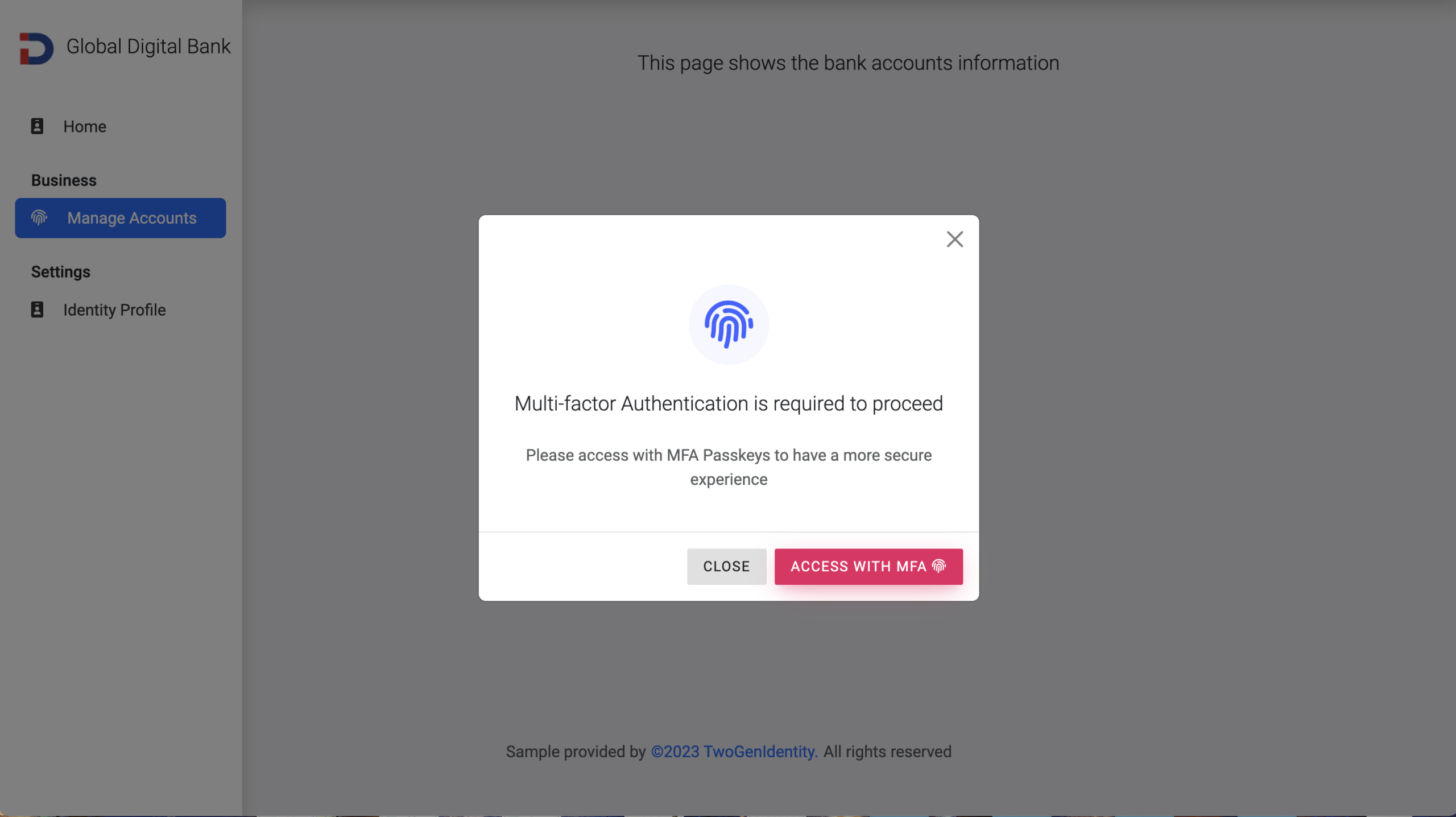
    Nevertheless, I’ve added to the Global Bank portal the feature for handling the step-up on the API side following the OAuth 2.0 Step-up Authentication Challenge Protocol proposed standard requiring MFA with Biometrics. So, the OAuth Spring Bank Account API will return 401 Unauthorized with ‘WWW-Authenticate’ header with ‘insufficient_authentication_level’ error message and the defined ‘acr_values’ that indicates to the client application what acr value to request at the identity provider. On the client side, the Bank Portal is able to interpred this error and redirect to the user to do the step-up authentication – with a lovely modal explaning the situation.

    Passworless experience with Passkey autofill

    When moving from passwords to passkeys, there might be challenges. User experience matters a lot. The default “modal” experience might not be good in some cases. But using the passkey with autofill (WebAuth Conditional UI) feature can improve the login process. Currently, Keycloak doesn’t have this feature, but I’ve made a custom SPI authenticator called keycloak-webauthn-conditional-mediation to add it.

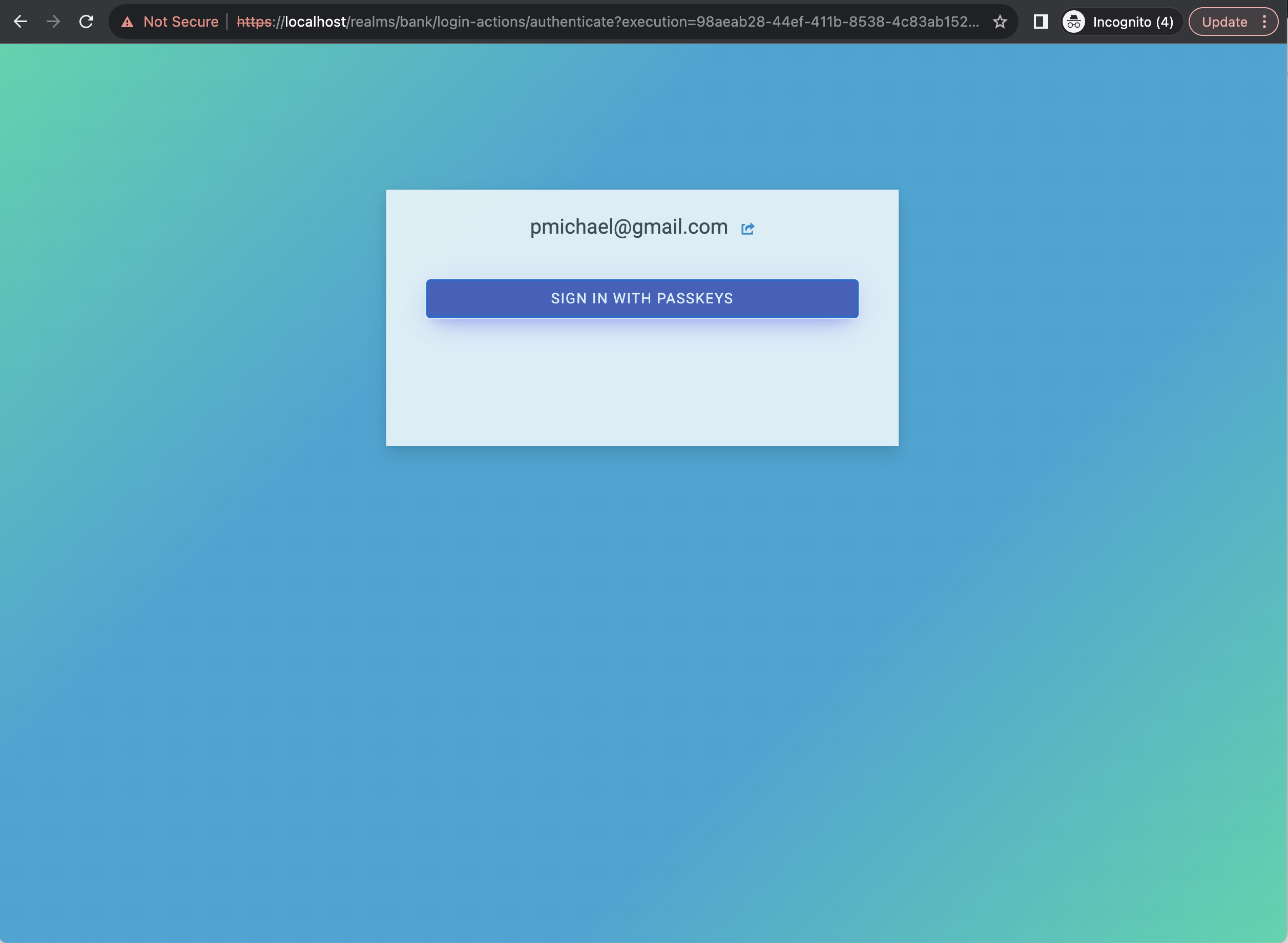
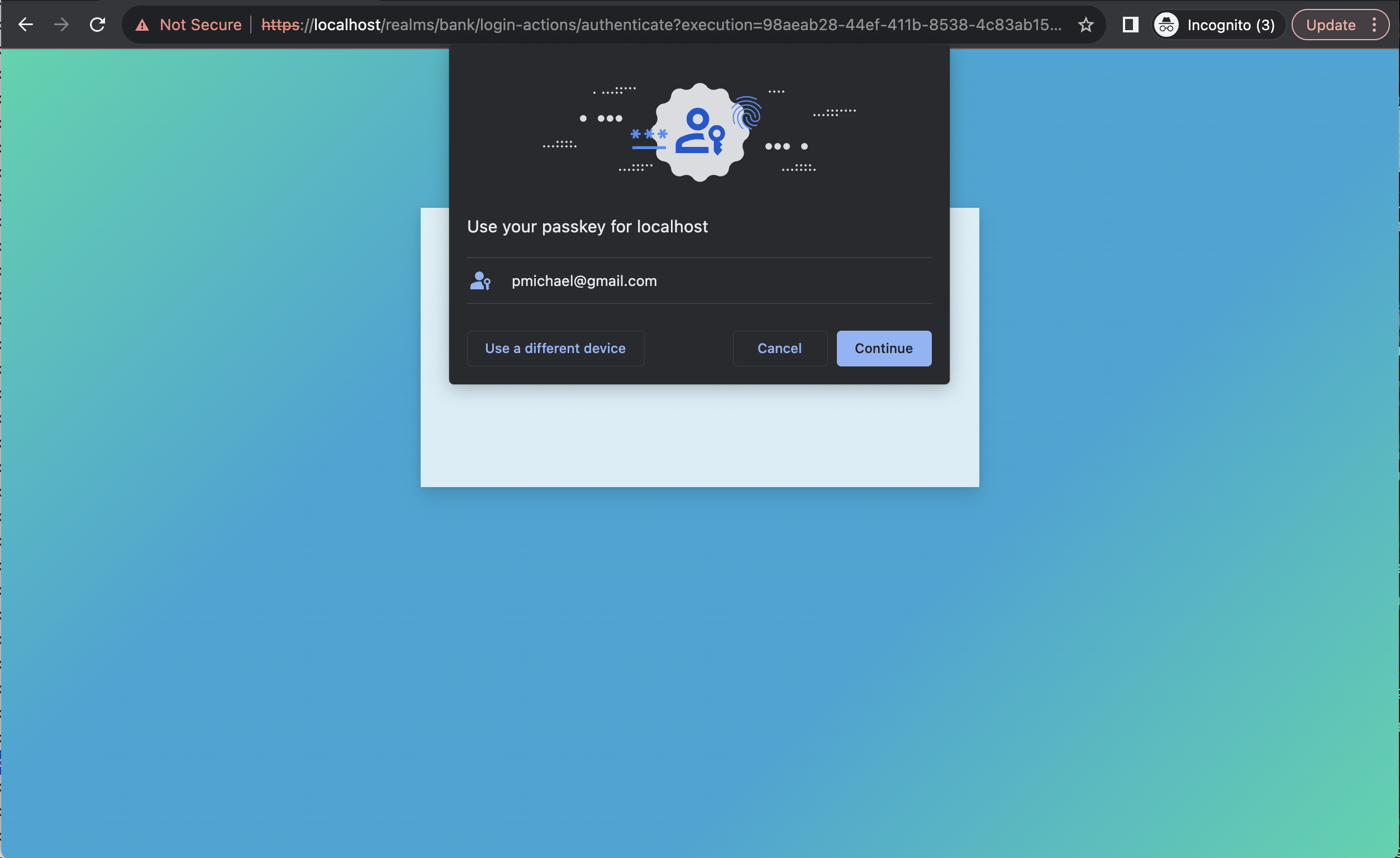
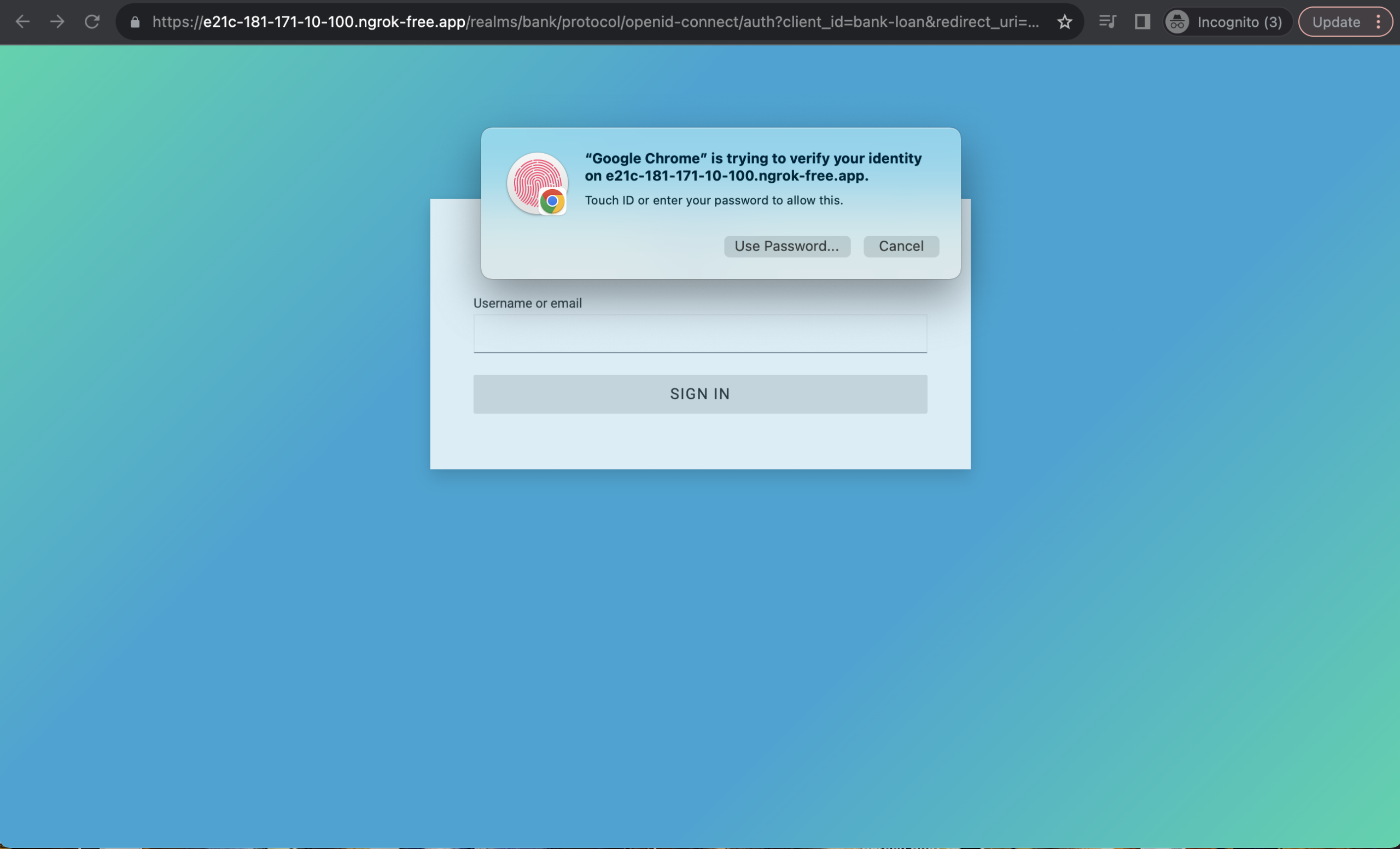
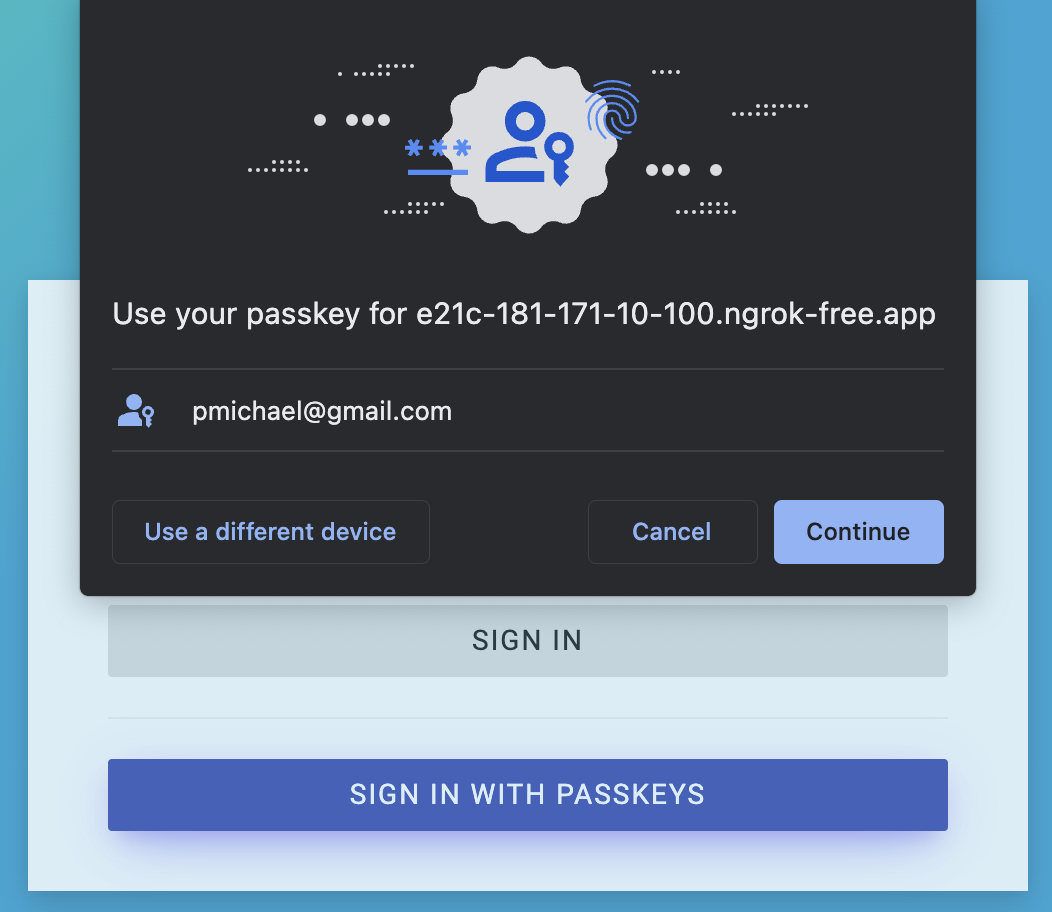
    Here’s the default user experience when trying to login with Passkeys, which is a dialog that pops up. In some cases the UX is not good.

    • Default user experience with Passkeys

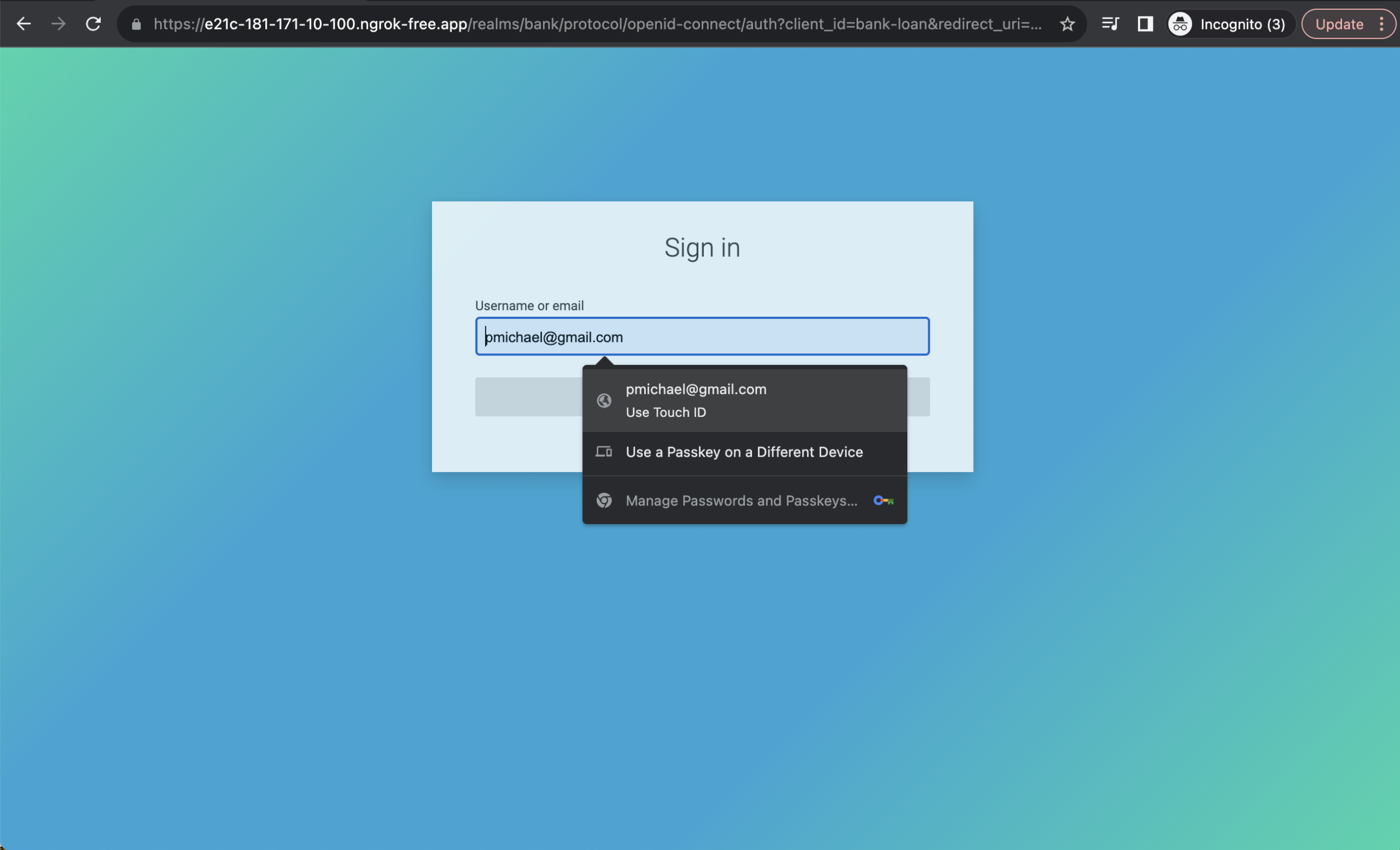
    By using the feature called conditional UI (a part of the WebAuthn standard), you can enhance the UX. You can include passkeys in autofill suggestions.

    • Improved Passkeys with suggestions

    When the user taps on the username input, an autofill suggestion dialog appears with stored passkeys, in addition to password autofil. The user can then select an account and use the device screen lock to sign in.

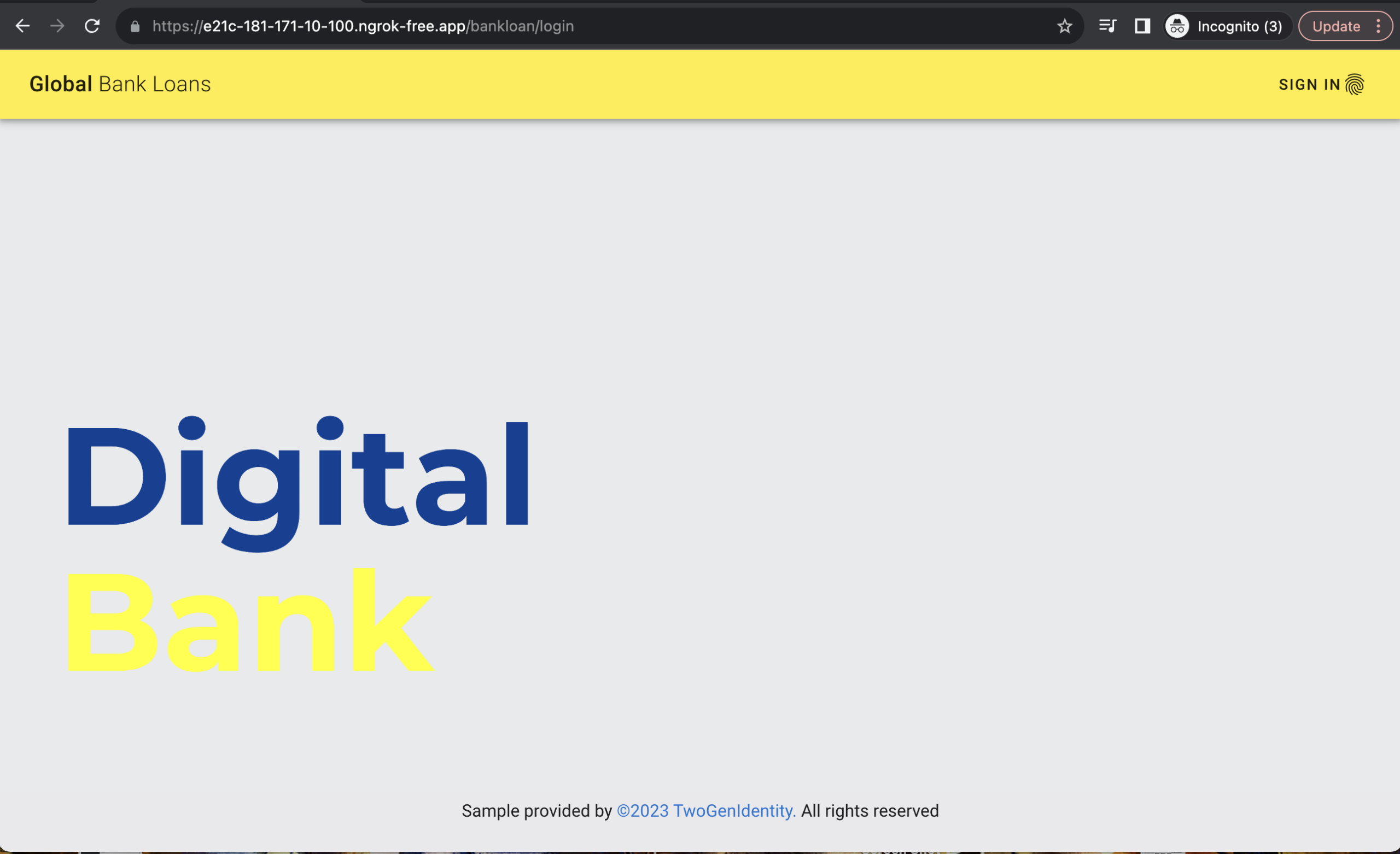
    In the workshop, the application named Bank Loan portal will utilize this approach to enhance the overall passwordless experience through the use of Passkeys with autofill.

    Progressive passkey enrollment during the sign-up or sign-in process

    In the latest version of the workshop, we added the feature of allowing the user to decide when they want to register the WebAuthn authenticator with the custom SPI (WebAuthn Authenticator Conditional Enrollment), either during the sign-up or sign-in process.

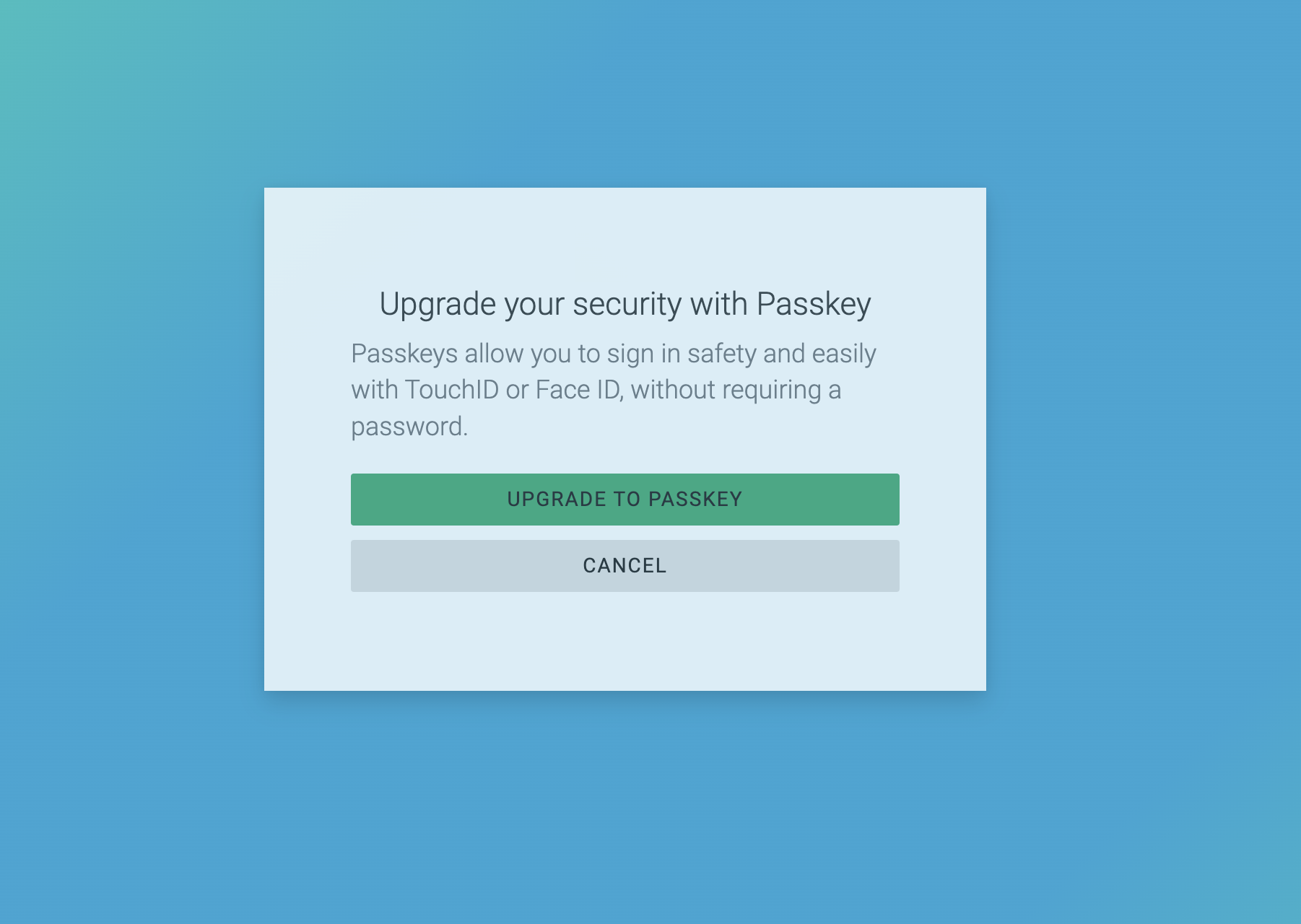
    If the user doesn’t have any passkey registered, it will be a common scenario when transitioning from a password-based to a passwordless experience. The sign-in process will ask the user if they want to upgrade to a Passkey to improve the security and UX experience.

    Therefore, you will follow the step below:

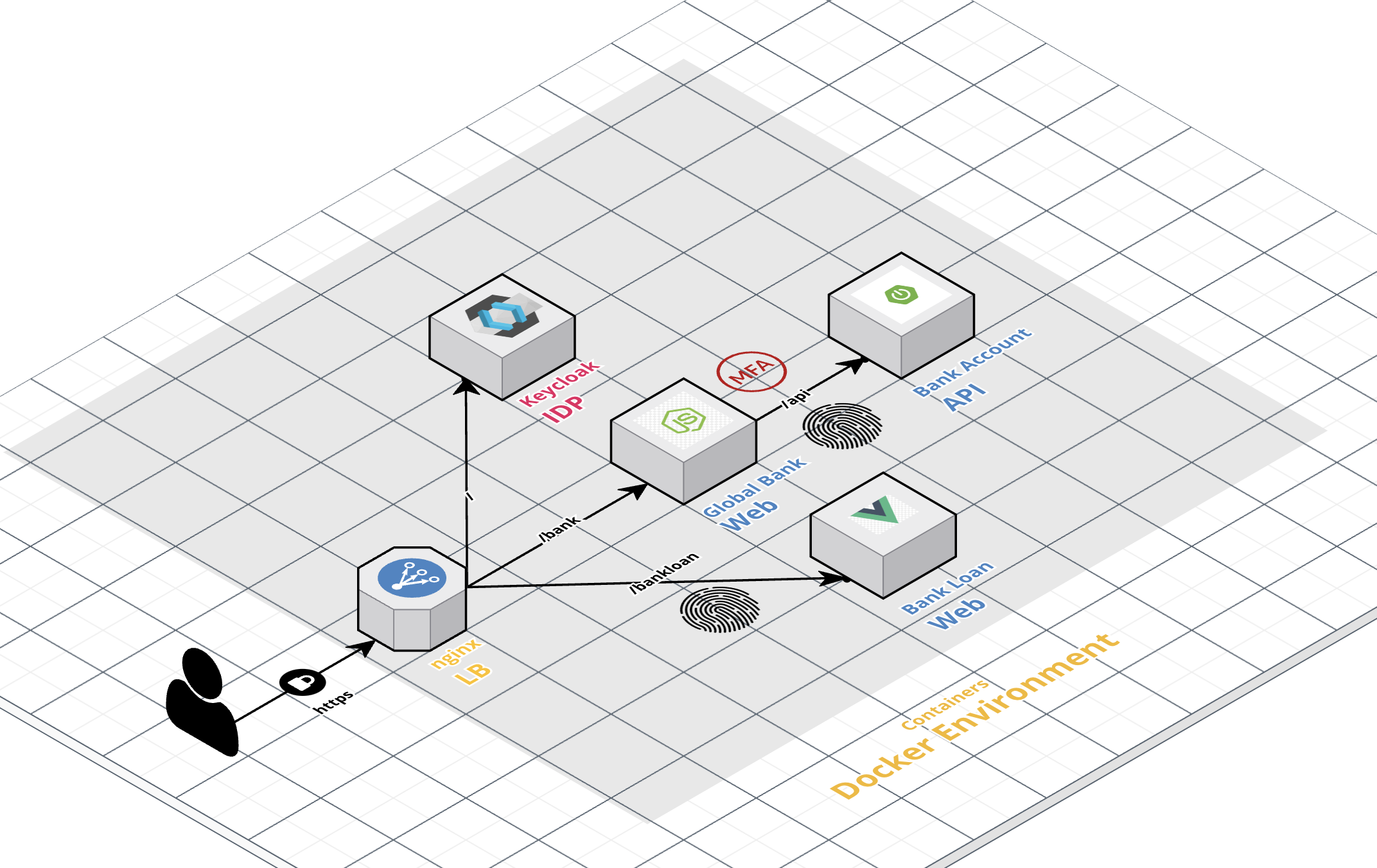
    Overview Architecture

    • Keycloak is responsible for handling the authentication with the standard OpenID Connect.

    • The Global Bank Portal is an SPA integrated with Keycloak using OpenID Connect. The Portal is capable of handling the 401 Unauthorized with WWW-Authenticate header, based on this standard to perform doing the step-up authentication.

    • The Bank Account API is a Spring Boot protected by OAuth 2.0, acting as OAuth2 Resource Server. The API follows the standard to trigger the step-up authentication challenge if the presented access token offers insufficient authentication based on the acr claim.

    • The Bank Loan Portal is a Vue application integrated with Keycloak using OpenID Connect. The Portal is authenticated with Keycloak, providing a passwordless experience with Passkeys.

    Architure

    • The custom SPI Webauthn Passwordless Conditional Mediation Authenticator (the repository will be available shortly) supports the following features:

      • Enabling passkey autofill when supported by the browser.
      • Displaying the “Sign with passkeys” button if passkey autofill is not available.
      • If Passkeys (Webauthn) are not supported, it will present the traditional username and password login option.
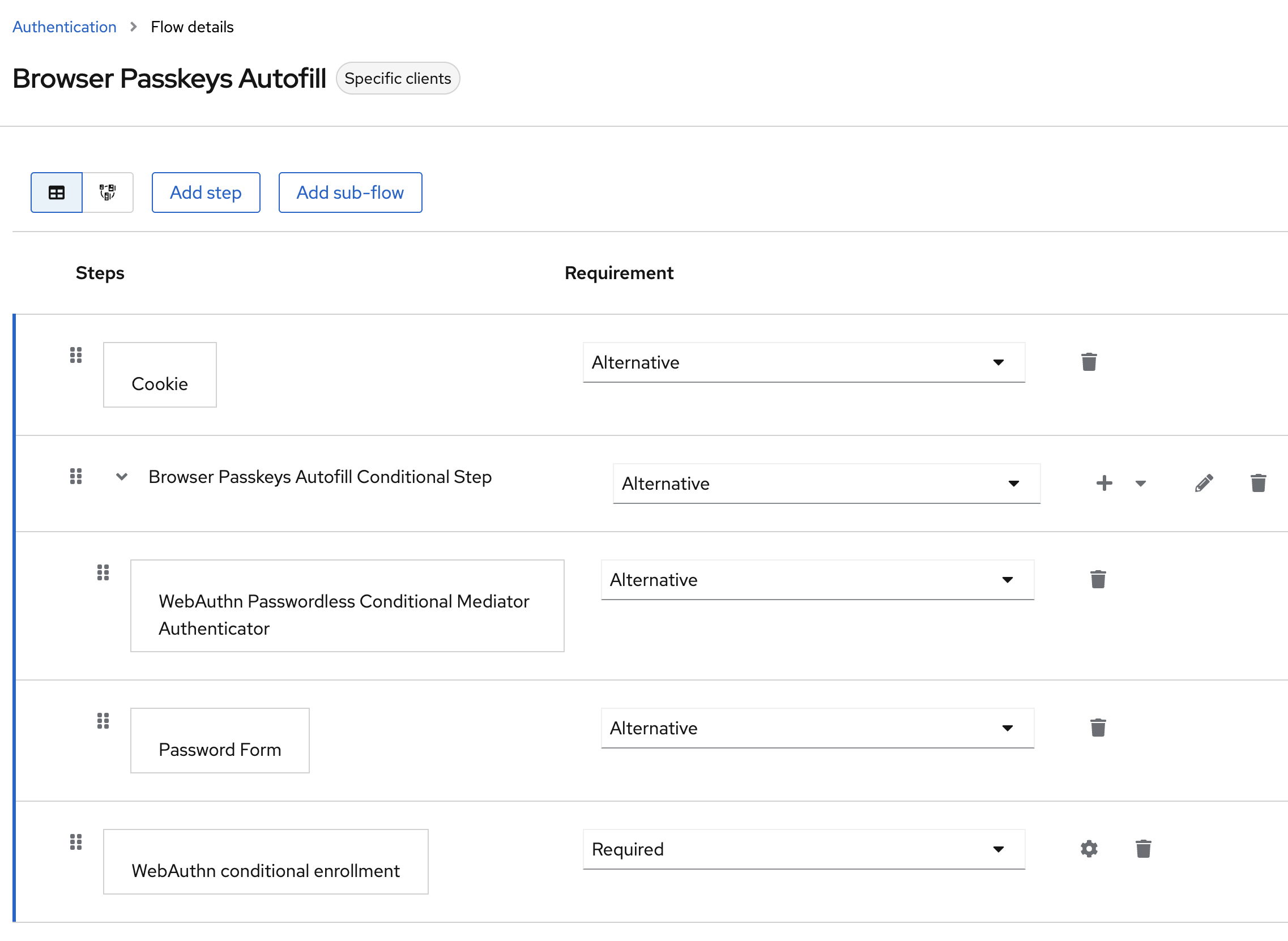
    • Here is the Passkeys Autofill flow :

    You can see we added the WebAuthn Conditional Enrollment step, which will help by asking the user if they want to move to a passwordless experience with a Passkey. The user will be asked if they don’t have any passkey registered.

    How to install?

    Prerequisites

    Deploy the PoC

    1. Clone this repository

      git clone https://github.com/embesozzi/keycloak-workshop-stepup-mfa-biometrics
      cd keycloak-workshop-stepup-mfa-biometrics
    2. Execute following Docker Compose command to start the deployment

      docker-compose -f docker-compose-idp.yml -f docker-compose-apps.yml -f docker-compose-lb.yml up
    3. Access the following URLs below exposed through the NGINX container via a web browser..

    Component URI Username Password Authn or Authz reference
    Global Bank Portal https://public-url/bank pwd (1F) or pwd + passkeys (MFA)
    Bank Account API Portal https://public-url/api OAuth 2.0 ACR claim loa2
    Bank Loan Portal https://public-url/bankloan passkeys autofill (1F) or pwd
    Keycloak Console https://localhost admin password
    1. Expose the application with a valid certificate, you can use ngrok for testing the passwordless experience. Just run the following command:

      docker run -it -e NGROK_AUTHTOKEN={YOUR-TOKEN} \
          ngrok/ngrok:alpine http host.docker.internal:443

    Considerations:
    Check out the Passkeys Browser Autofill UI Device Support link. So far, Ubuntu doesnt not support Passkey Autofill UI.

    Test cases

    As an example, I’ve implemented Global Bank portal (Cases 1 and 2) portal that has the following requirements:

    • Supports OIDC login with one-factor username and password and two factor with Passkeys
    • Only authenticated user with MFA Passkeys can access to manage the bank accounts
    • If the user is not authenticated with MFA when managing bank accounts, it triggers the step-up to MFA 🙂 in a lovely way

    The Bank Loan portal (Case 3) has the following requirements:

    • Supports OIDC login with Passkeys → A super nice way to do the login with Passkeys autofill
    • Only authenticated users can view and apply for the loans

    Use case 1: Sign up on the Global Bank Portal

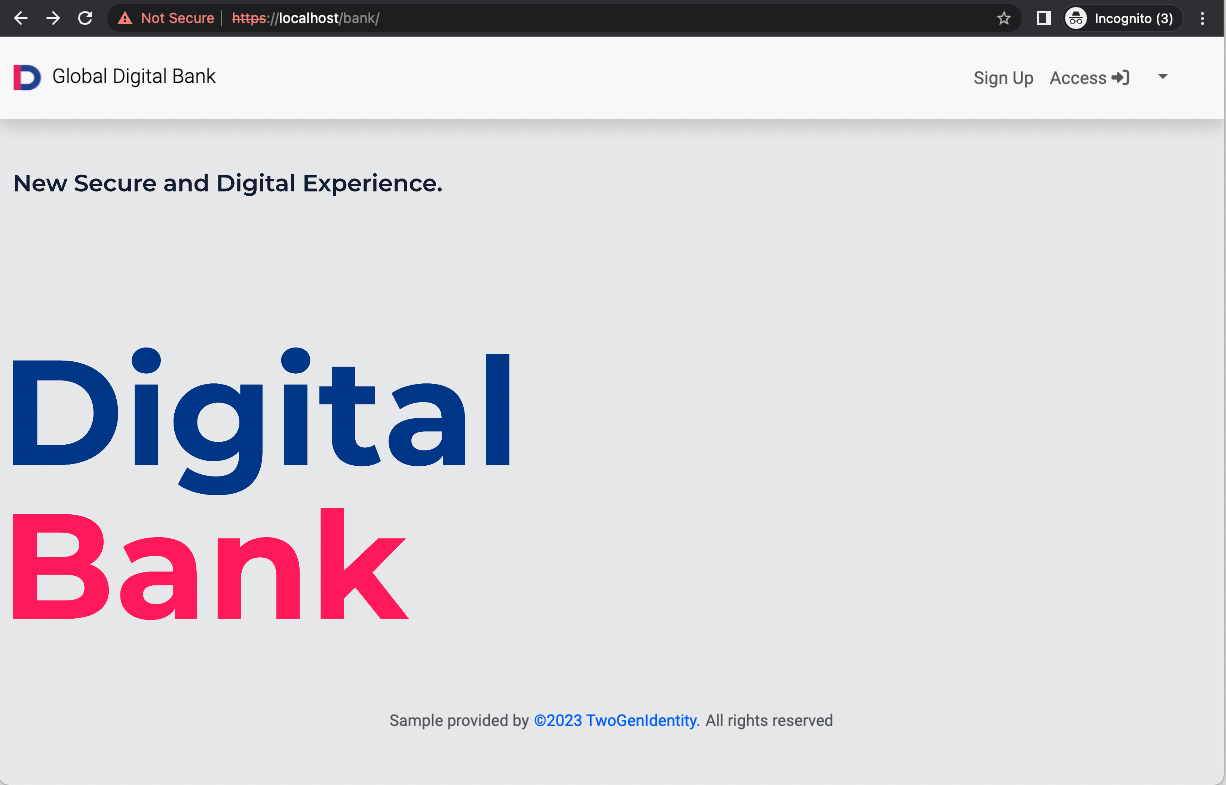
    1.1. Access to the Bank Portal and proceed with user registration:

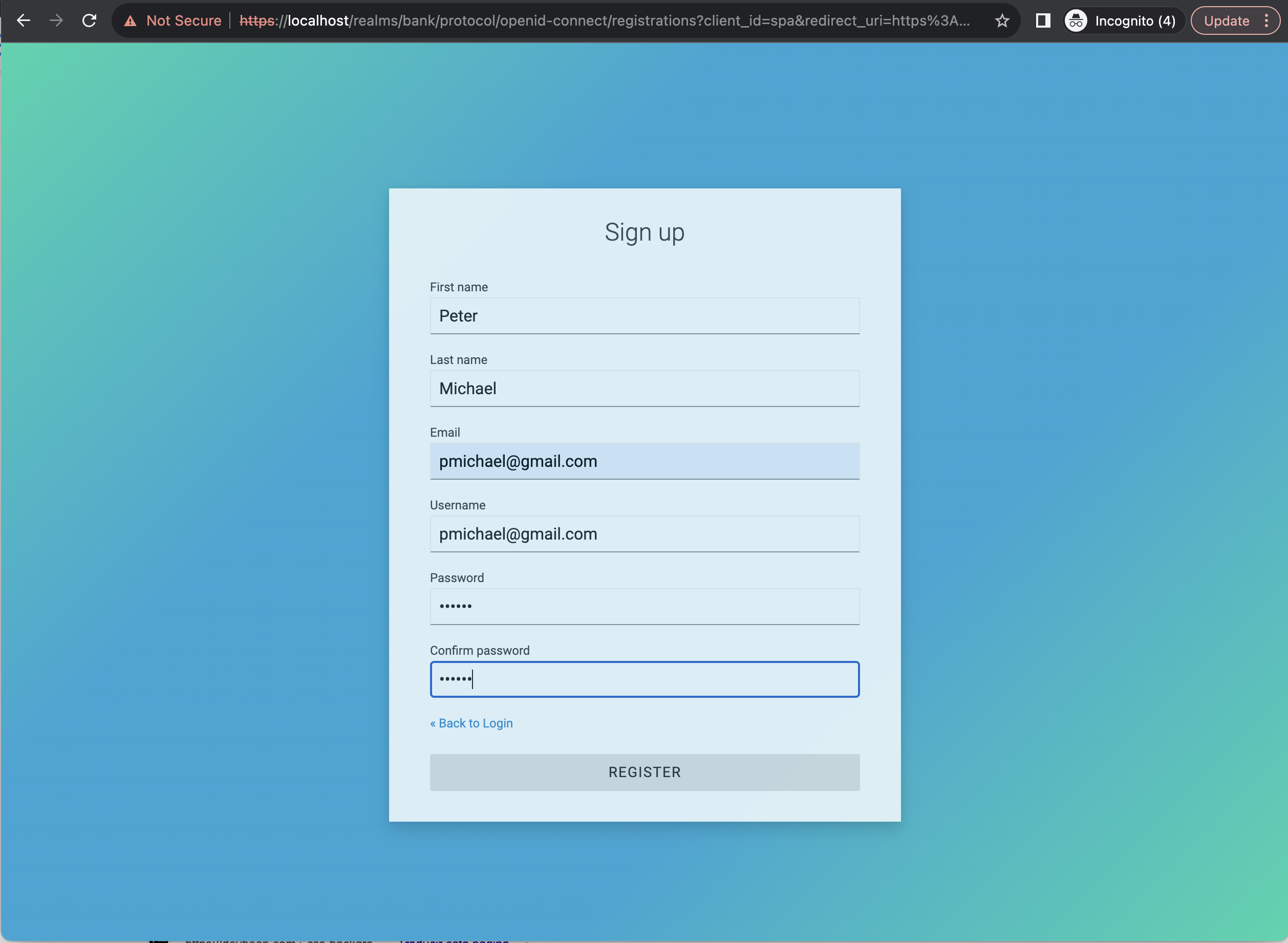
    1.2. Complete the user information (step 1):

    1.5. Click in Upgrade to Passkey button: You can do it during the sign-up or sign-in process.

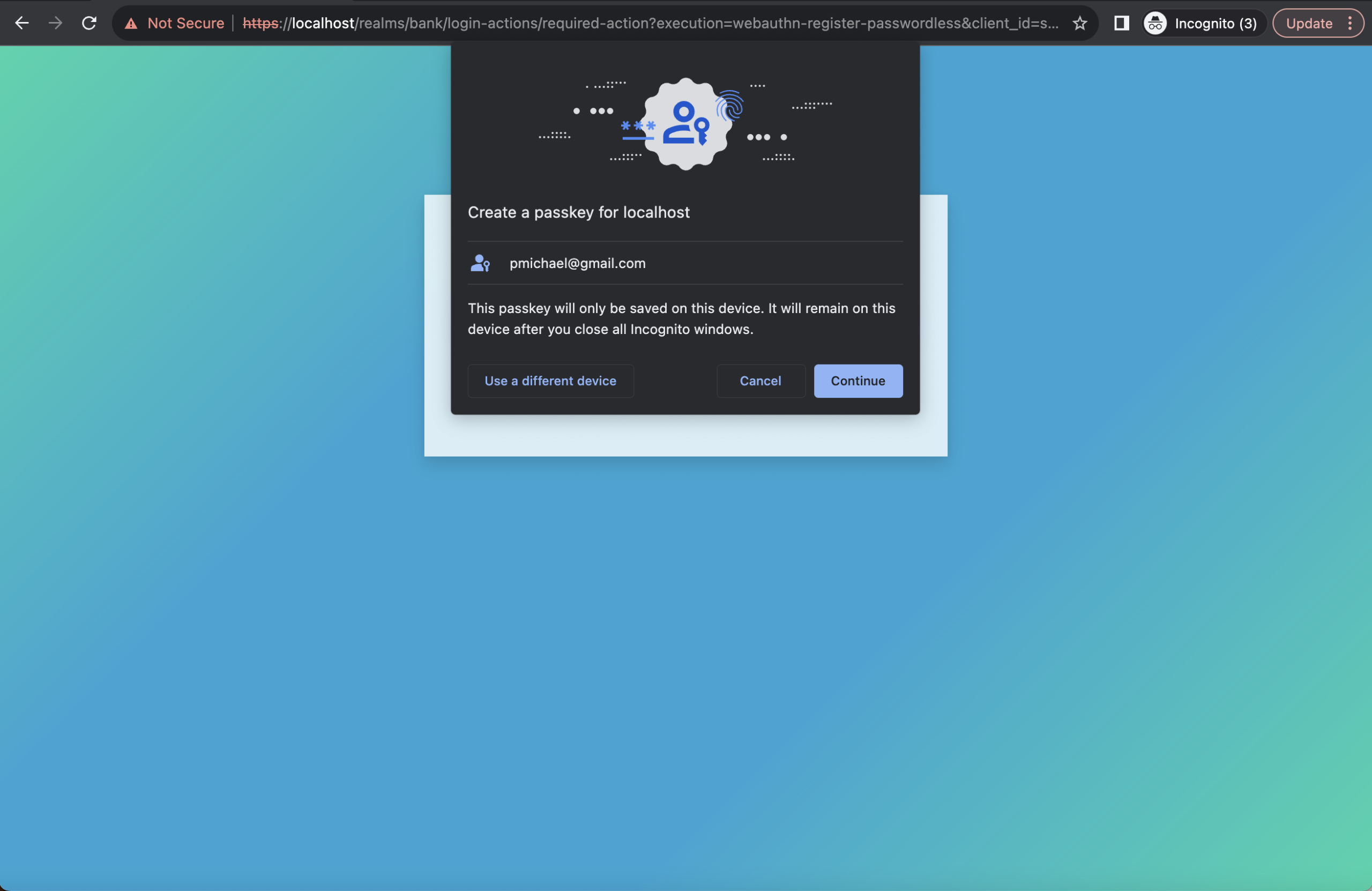
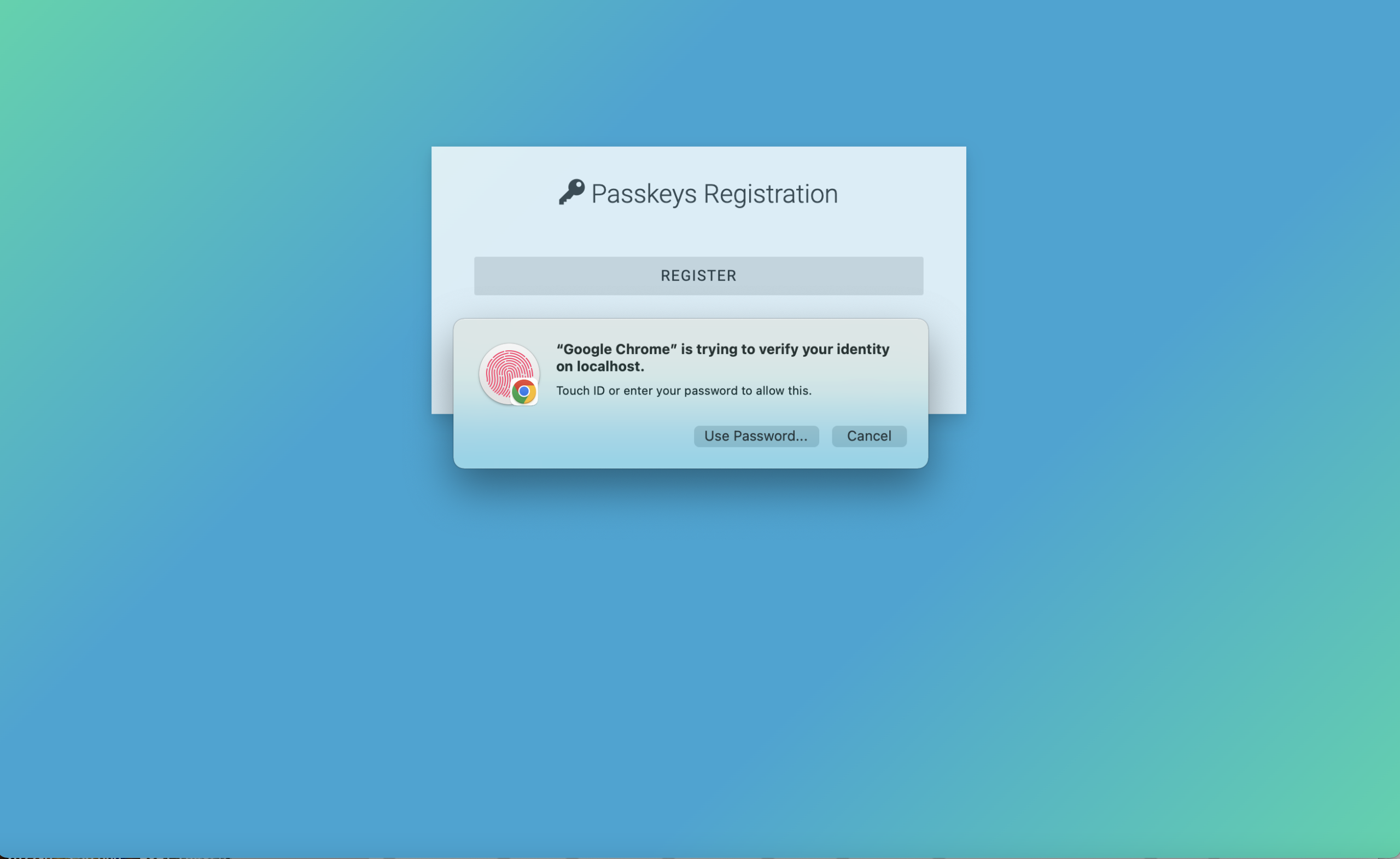
    1.4. Register the Passkeys (step 2):

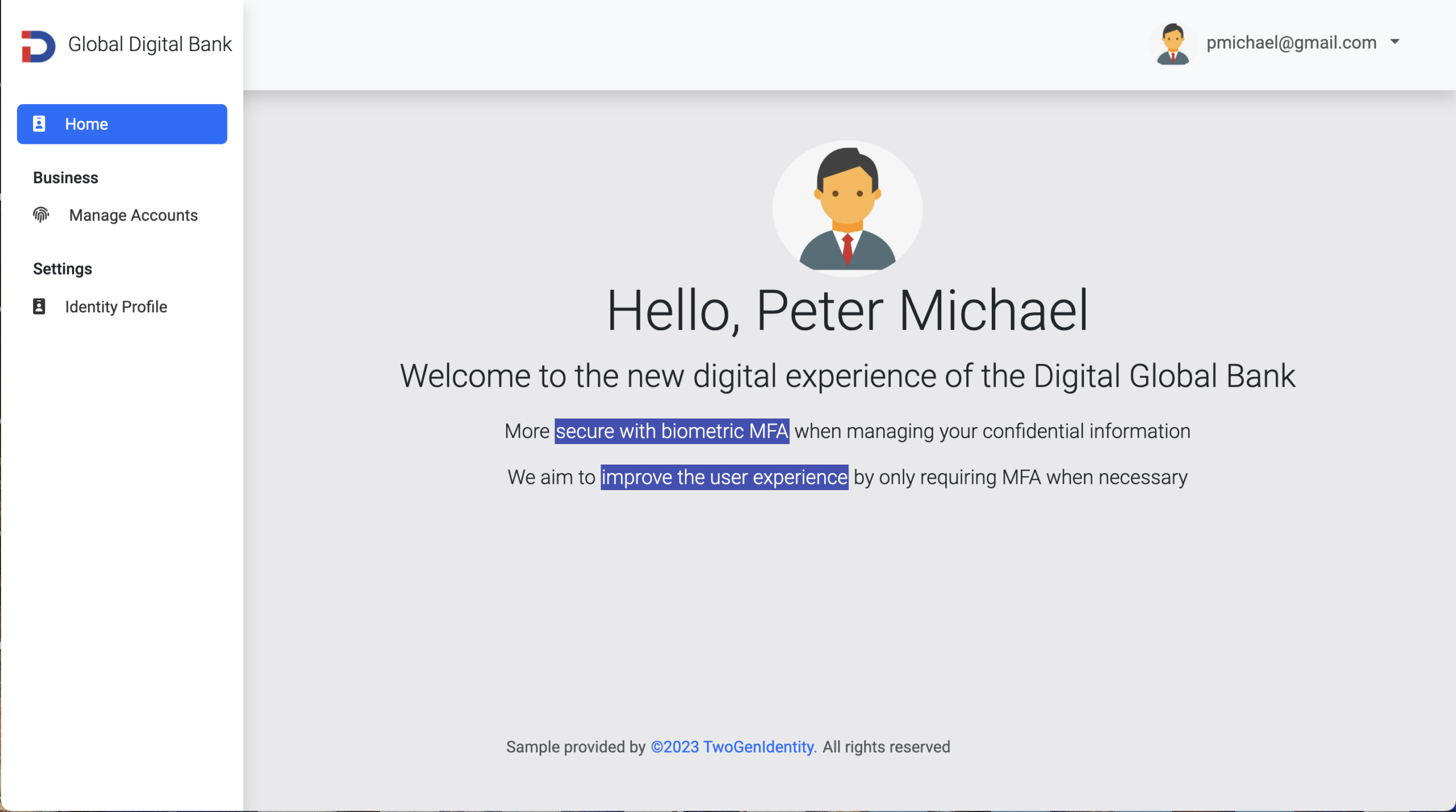
    1.5. You will see the Bank Portal Home

    Use case 2: Sign in to the Global Bank Portal for Managing Bank Accounts

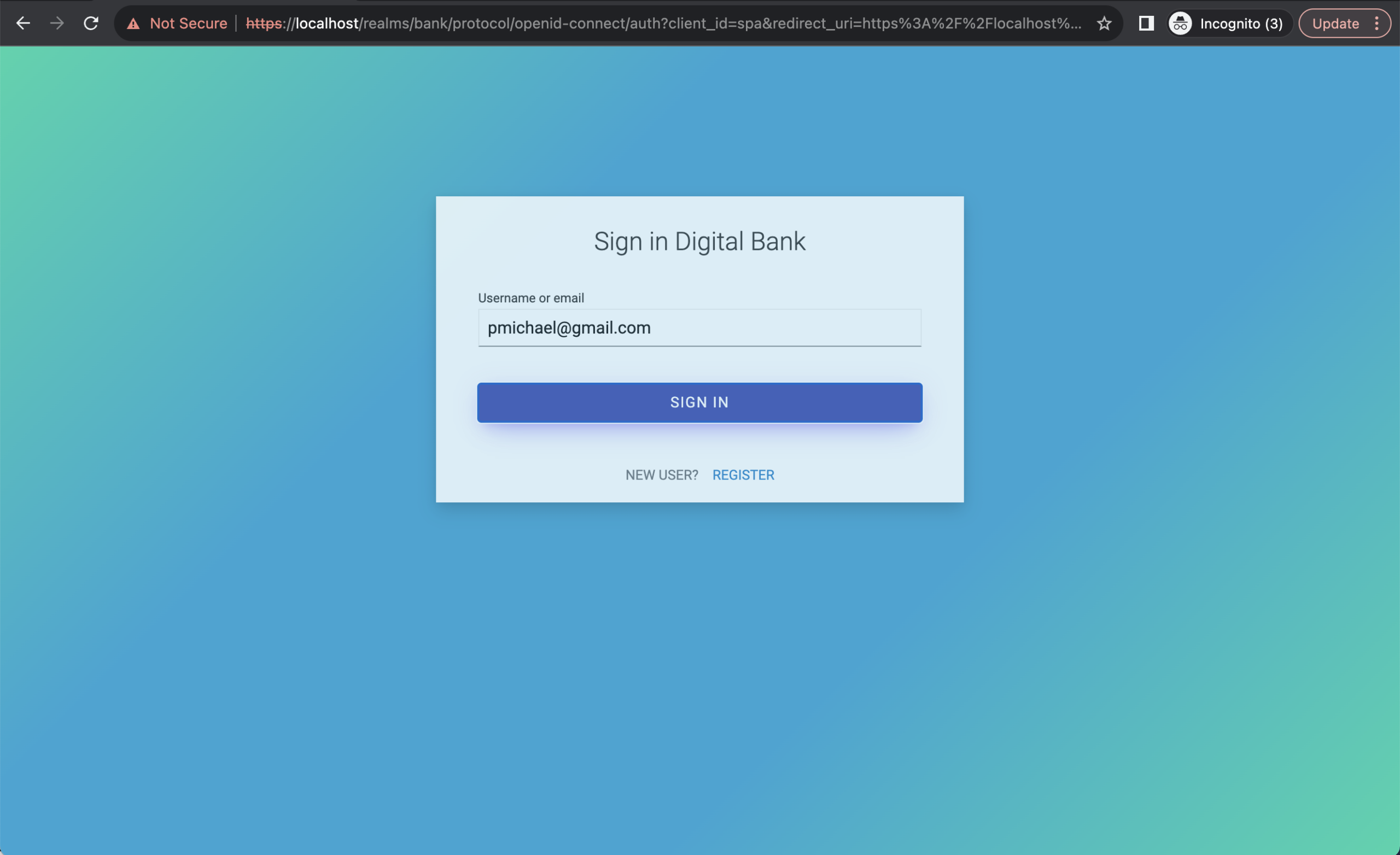
    2.1. Access to the Bank Portal and Sign In:

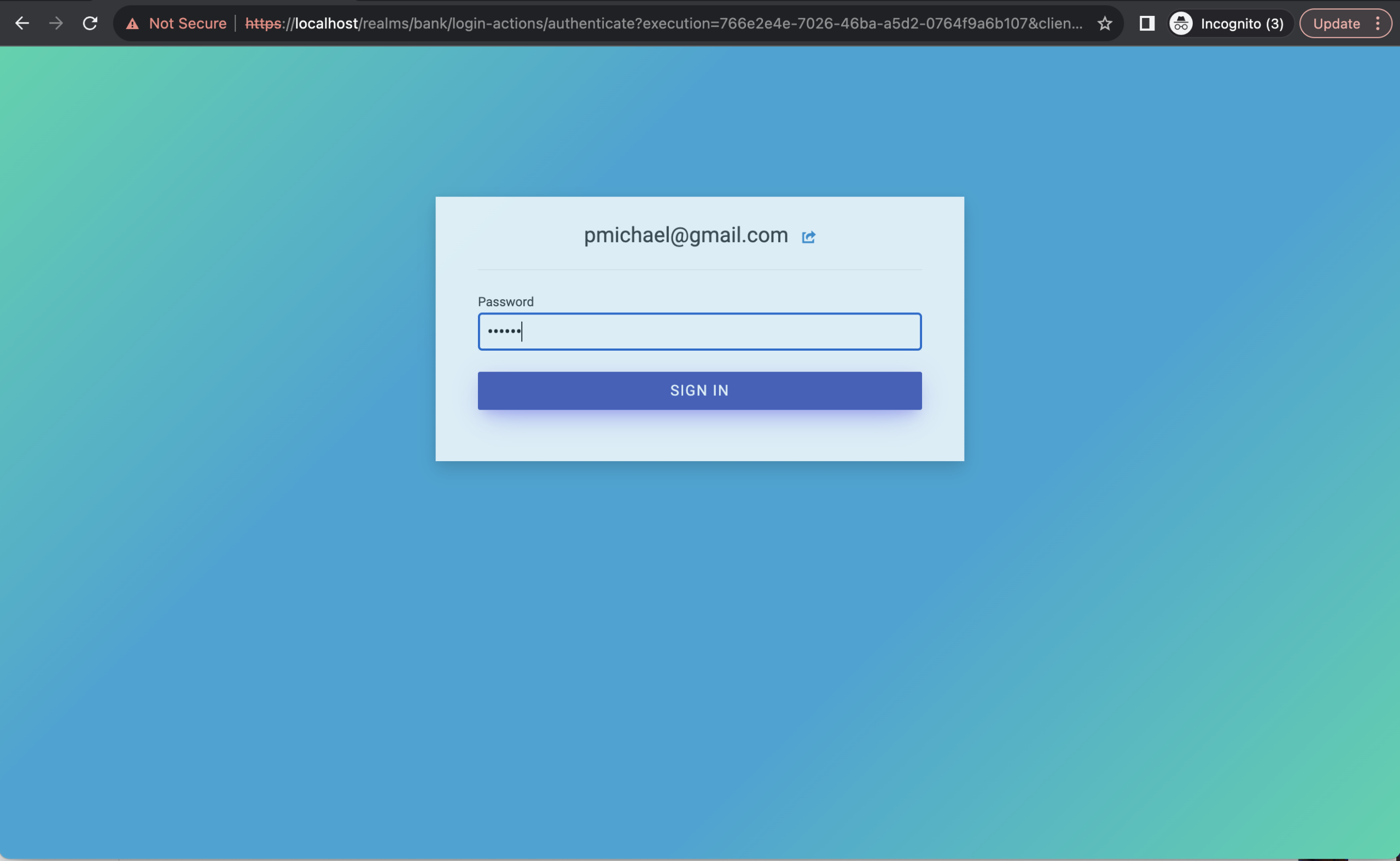
    2.2 Complete the username and password (1 factor):

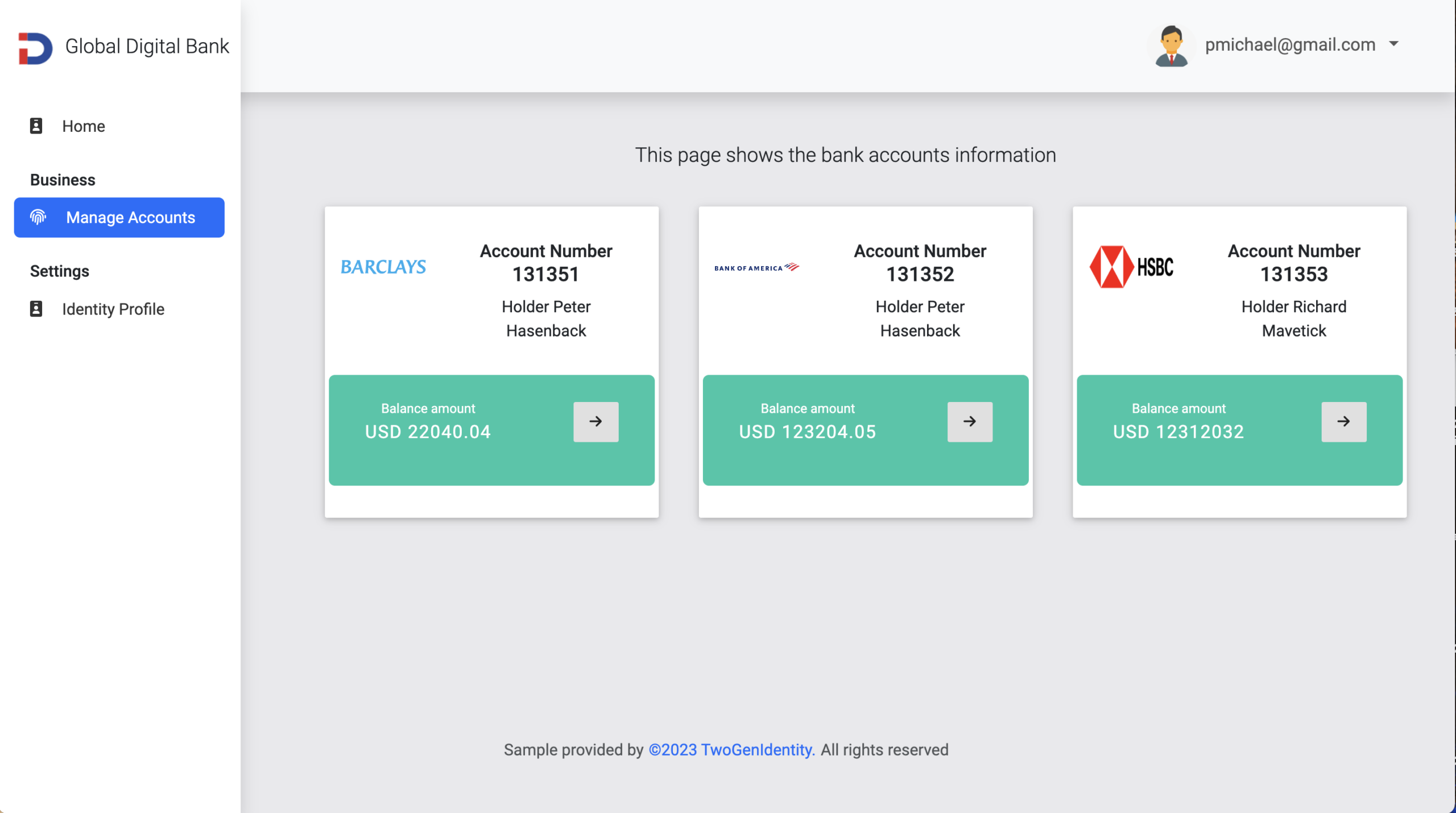
    2.3 You will see to the Bank Portal Home:

    2.4 Go to the Identity Profile section and check your ACR claim: loa1

    2.5 Go to the Manage Bank Accounts. You will see that Authn Level is not enough, with a lovely modal that handles the step-up authentication based on the access denied information.

    • Proceed to login sign in with MFA

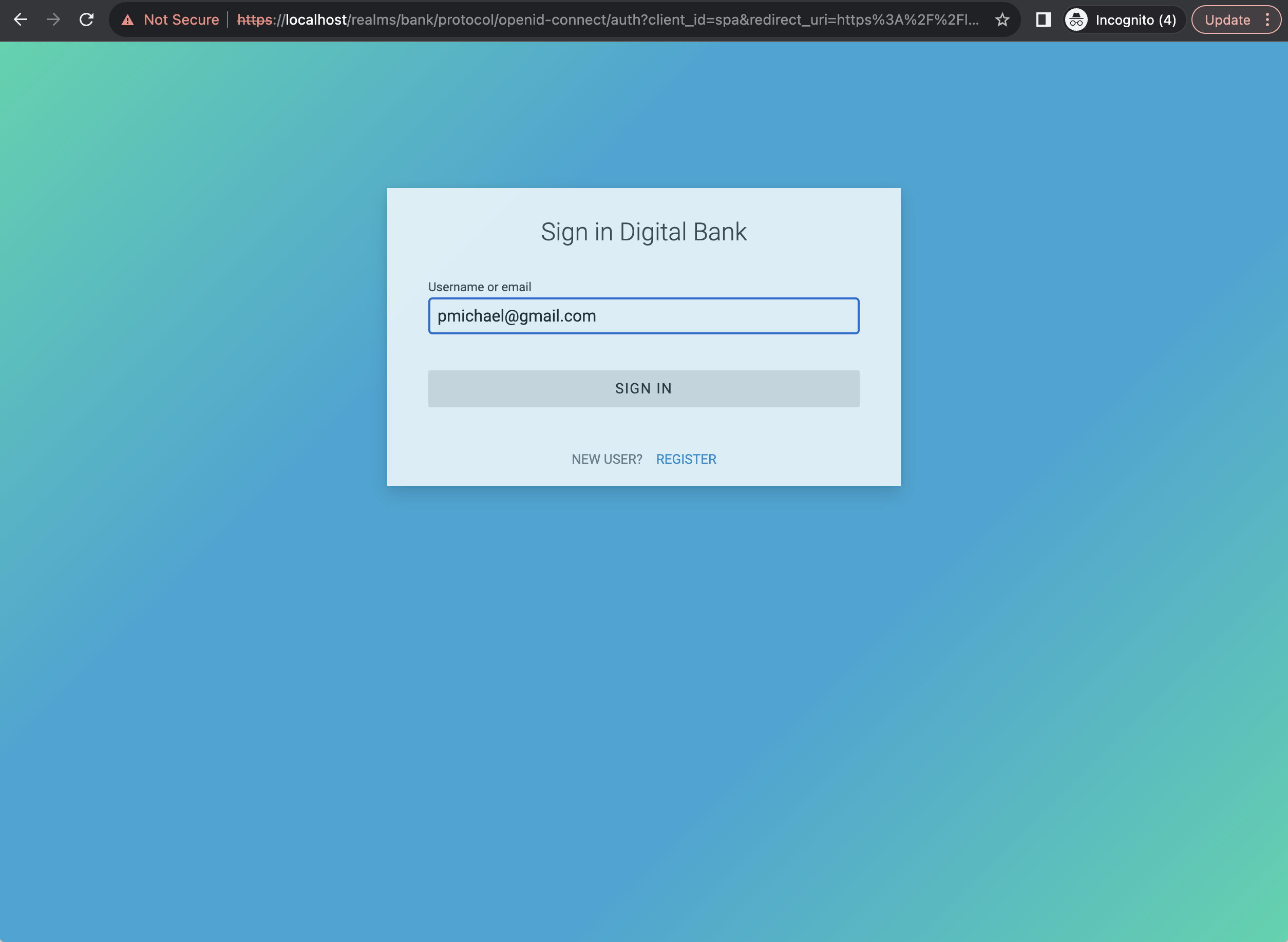
    2.6 Complete the user name and password (1 factor):

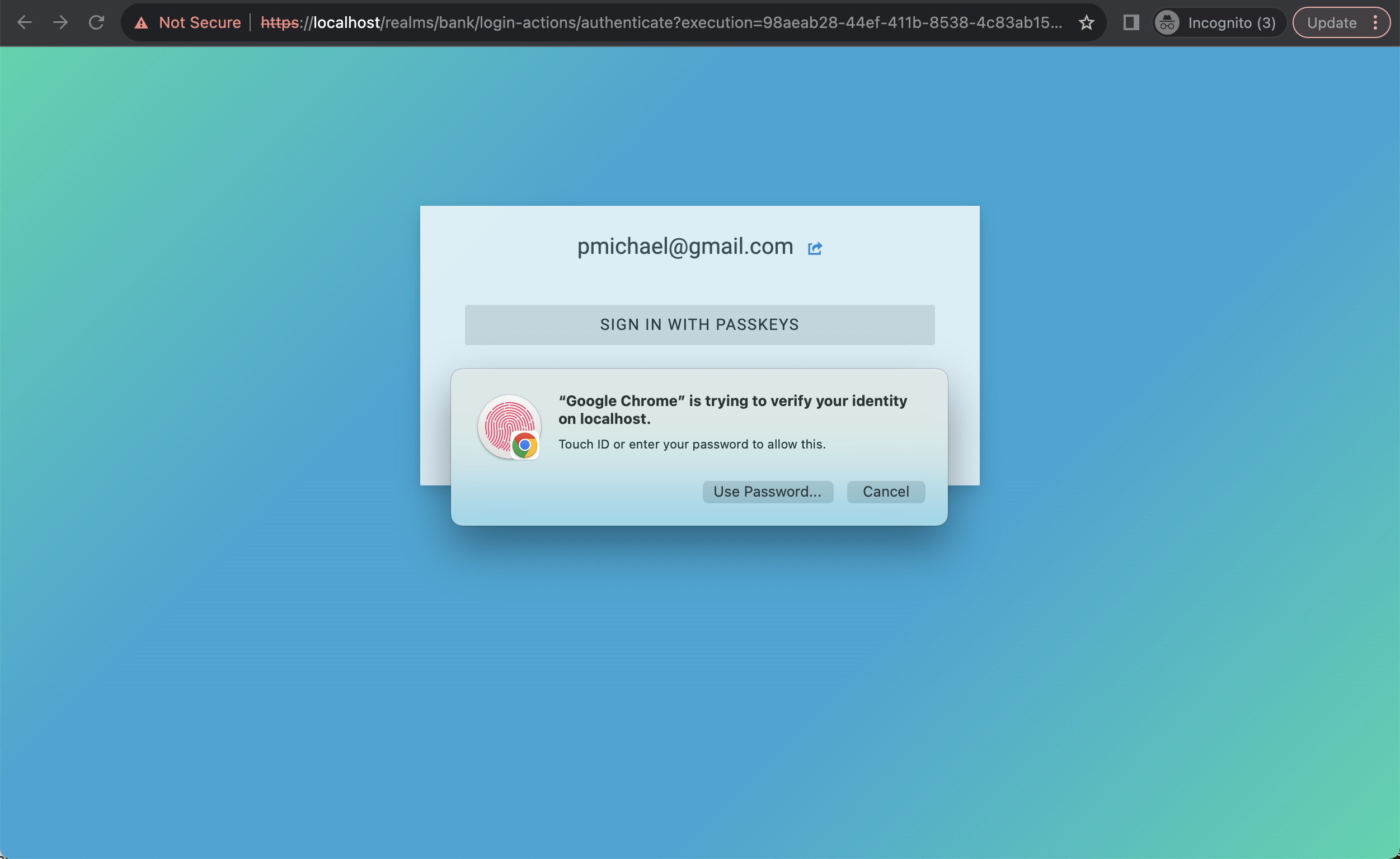
    2.7 Select your passkey and then verify your identity, in this case with Touch ID (2 factor):

    2.8 You will see the Bank Account Information since you have signed in with MFA

    2.9 Go to the Identity Profile section and check your ACR claim: loa2

    Use case 3: Sign in Passkey autofill on the Bank Loan (Web)

    3.1. Access the Bank Loan Portal

    3.2 Simply click on the username, it will the passkey with autofill 🥰 and choose the passkey.

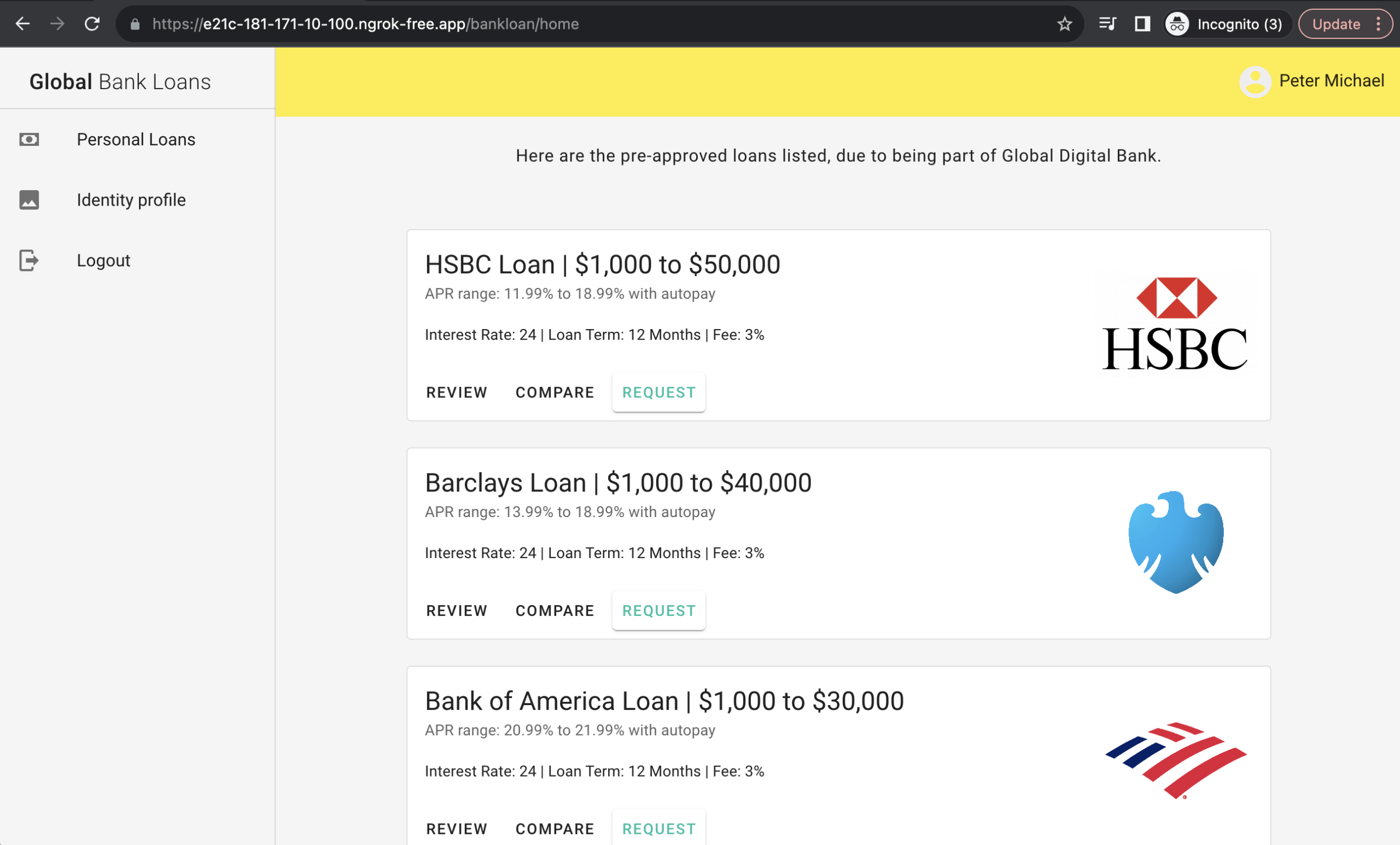
    3.3 Verify your identity and the you will see will see the Loan portal home:

    (Optional) If the user doesn’t have any passkey registered, it will be a common scenario when transitioning from a password-based to a passwordless experience. The sign-in process will ask the user if they want to upgrade to a passkey.

    Use case 4: Sign in passwordless default experience on the Bank Loan Portal

    Here are additional examples using the OOTB Keycloak Browser Passwordless feature, providing you with a better understanding of the default user experience.

    Here is the login with passkey in default modal experience:

    Here is the login with passkey in a mobile app:

    Visit original content creator repository
  • Zomato_EDA

    Zomato Dataset Exploratory Data Analysis (EDA)

    Project Overview:
    This project is an Exploratory Data Analysis (EDA) on the Zomato dataset, aimed at extracting insights about restaurants, ratings, cuisines, and customer preferences. The analysis is performed using Python, leveraging libraries such as Pandas, NumPy, Matplotlib, and Seaborn.

    Dataset:
    The Zomato dataset contains information on restaurants across various countries, including details such as:

    Restaurant name
    Location
    Average cost for two
    Ratings
    Cuisines
    Online delivery and table booking options
    Number of votes
    And more.
    Objective

    The objective of this project is to:

    Understand the overall distribution and trends in restaurant ratings, cost, and services.
    Discover the relationships between various features, such as cost and rating, location and cuisines, etc.
    Visualize key insights through graphs and charts for better understanding.
    Tools and Libraries

    The following libraries were used in the project:

    Pandas: For data manipulation and analysis.
    NumPy: For numerical computations.
    Matplotlib: For basic plotting and visualization.
    Seaborn: For enhanced data visualization.
    Key Steps in the Analysis

    Data Cleaning:

    Handle missing values.
    Drop duplicates and irrelevant columns.
    Standardize categorical variables.

    Data Exploration:

    Univariate analysis of individual columns (e.g., distribution of ratings, average cost for two, etc.).
    Bivariate analysis to find relationships (e.g., correlation between rating and cost).
    Analysis based on different countries, cities, and cuisines.

    Visualizations:

    Distribution of restaurant ratings.
    Most popular cuisines.
    Restaurant cost distribution.
    Top cities with the highest number of restaurants.
    Correlation heatmaps to show relationships between variables.

    Conclusion
    This project provides a comprehensive analysis of the Zomato dataset, highlighting key trends in restaurant ratings, cost, and customer preferences. The findings could be useful for understanding the dynamics of restaurant businesses and customer preferences across different regions.

    Future Work
    Implementing machine learning models for predicting restaurant ratings or popularity based on features.
    Analyzing time-series data if available, to find trends over time.
    Adding more advanced visualizations and interactive plots using Plotly or Dash.

    Visit original content creator repository

  • bmb.infra

    bmb.infra (deploy)

    Terraform

    Overview

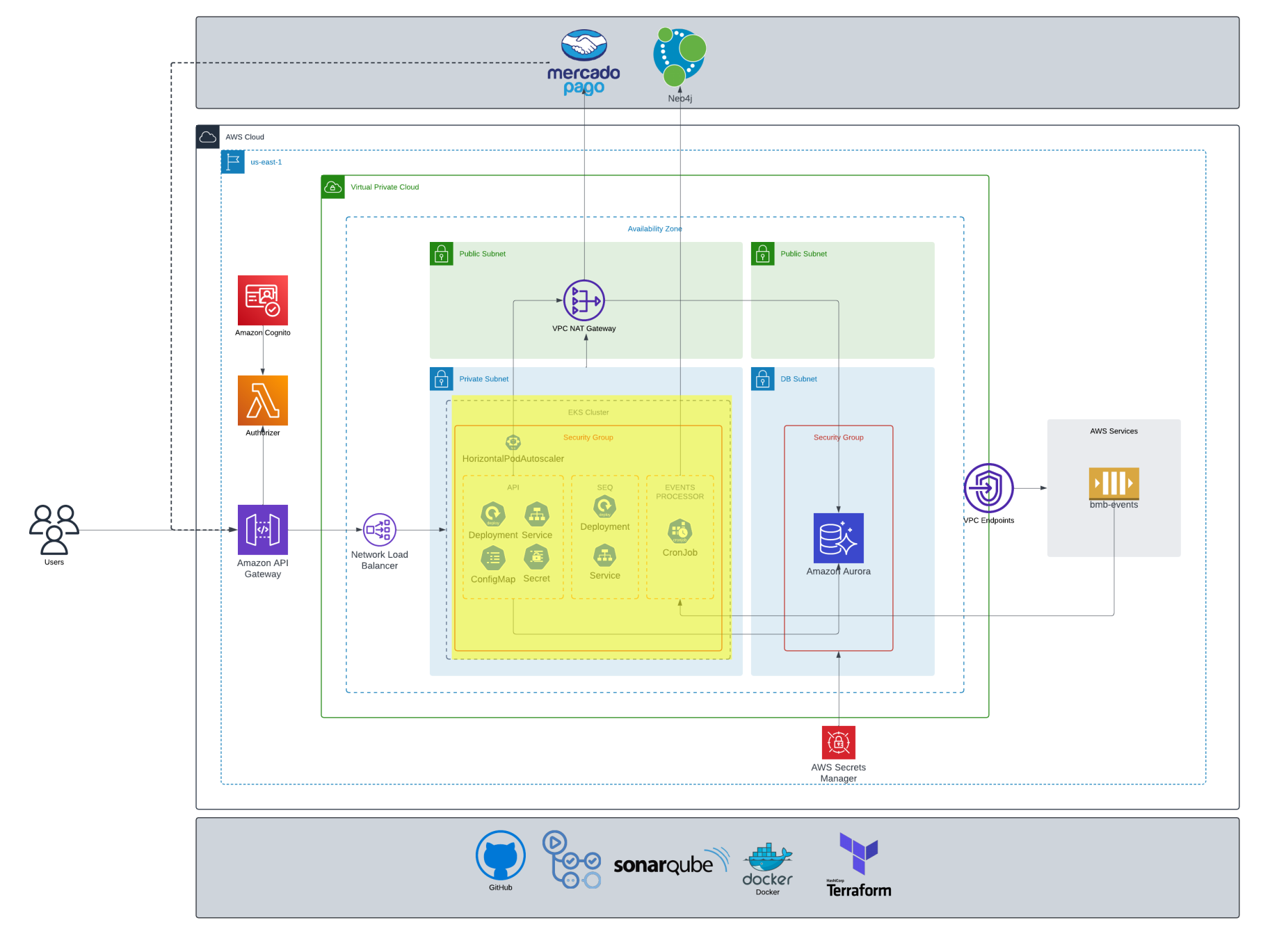
    This repository contains Terraform configurations to set up a Virtual Private Cloud (VPC) and an Elastic Kubernetes Service (EKS) cluster on AWS. These components form the core elements of the infrastructure, providing a scalable and secure environment for deploying containerized applications.

    Architecture

    The architecture consists of the following components:

    • VPC (Virtual Private Cloud): A logically isolated network that provides the foundation for the AWS infrastructure.
    • Subnets: Public and private subnets spread across multiple Availability Zones for high availability.
    • Internet Gateway: Allows communication between the VPC and the internet.
    • NAT Gateway: Enables instances in private subnets to connect to the internet while remaining unreachable from the outside.
    • EKS Cluster (Elastic Kubernetes Service): A managed Kubernetes service that simplifies running Kubernetes on AWS without needing to install and operate your own Kubernetes control plane or nodes.
    • Worker Nodes: EC2 instances that run your containerized applications.

    Resources Created

    • VPC (Virtual Private Cloud): A logically isolated network that provides the foundation for the AWS infrastructure.
    • EKS Cluster (Elastic Kubernetes Service): A managed Kubernetes service that simplifies running Kubernetes on AWS without needing to install and operate your own Kubernetes control plane or nodes.

    Prerequisites

    • Terraform installed on your local machine.
    • AWS CLI configured with appropriate credentials.
    • An AWS account with necessary permissions to create VPC and EKS resources.

    Usage

    1. Clone the repository.
    2. Navigate to the directory containing the Terraform files.
    3. Initialize Terraform:
      terraform init
    4. Apply the Terraform configuration:
      terraform apply

    Outputs

    • VPC ID: The ID of the created VPC.
    • EKS Cluster Name: The name of the created EKS cluster.
    • EKS Cluster Endpoint: The endpoint URL for the EKS cluster.

    Notes

    • Ensure that the AWS region specified in the Terraform configuration matches your desired deployment region.
    • Review and customize the Terraform variables as needed to fit your specific requirements.

    License

    This project is licensed under the MIT License. See the LICENSE file for more details.

    This repo on the infrastructure

    Architecture Diagram

    Visit original content creator repository
  • DiffusionToolkit

    Diffusion Toolkit

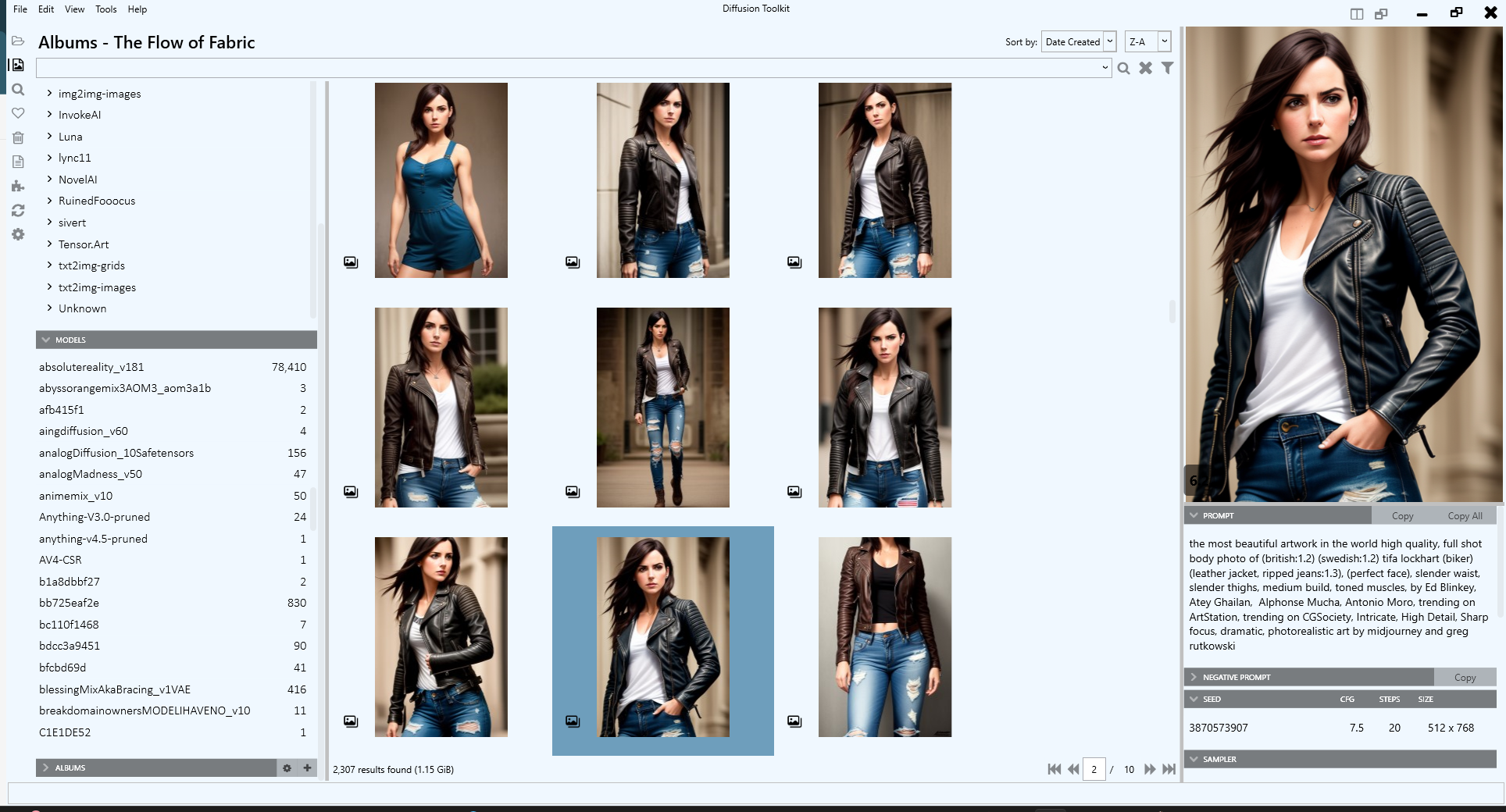
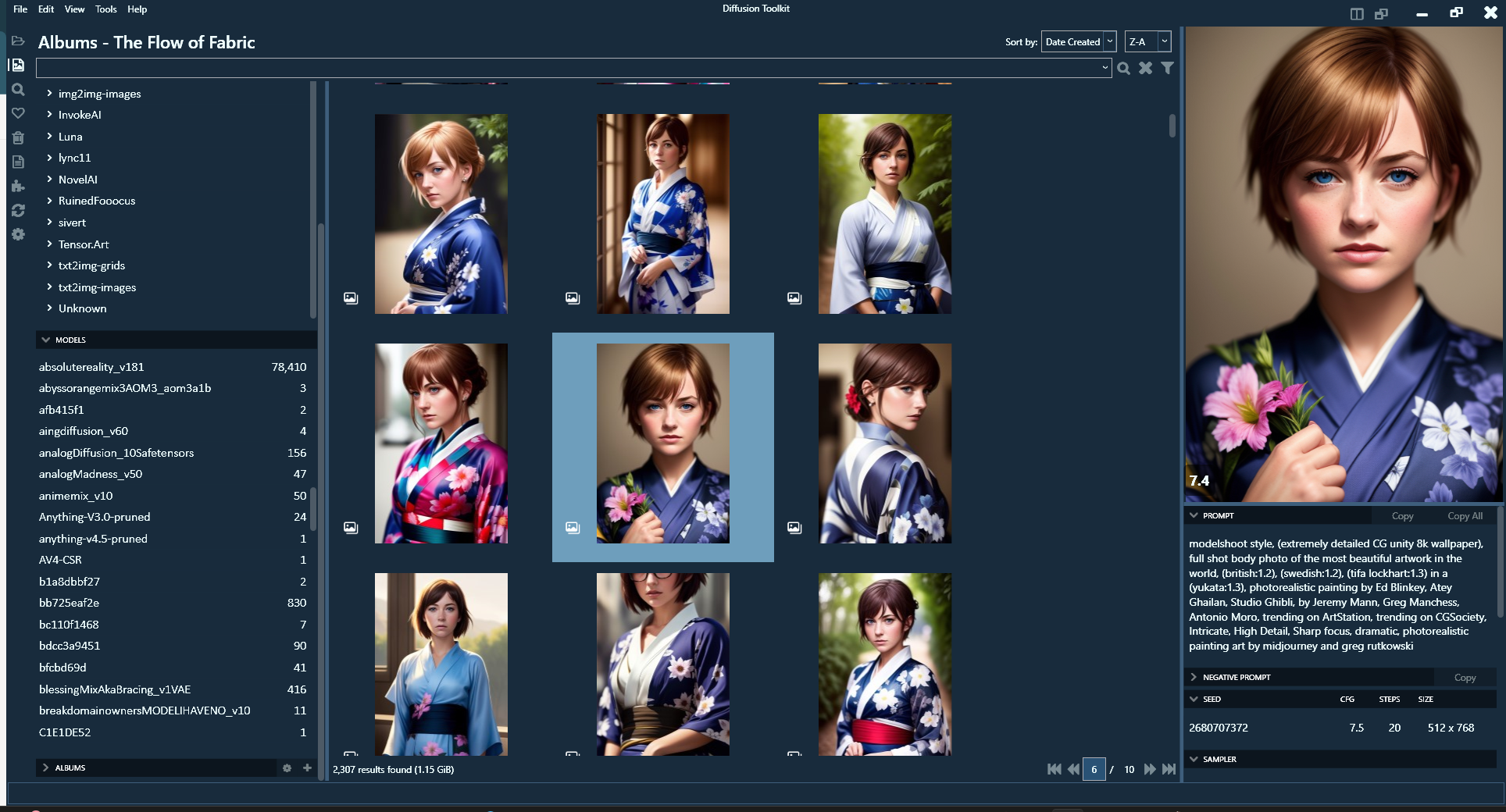
    Diffusion Toolkit is an image metadata-indexer and viewer for AI-generated images. It aims to help you organize, search and sort your ever-growing collection.

    Usage

    Usage should be pretty straightforward, but there are a lot of tips and tricks and shortcuts you can learn. See the documentation for Getting Started

    Thanks to Bill Meeks for putting together a demonstration video. This is for an older version.

    Organize your AI Images

    Installation

    • Currently runs on Windows only
    • Download the latest release
      • Look for > Assets under the latest release, expand it, then grab the zip file Diffusion.Toolkit.v1.x.zip.
    • Unzip all the files to a folder
    • You may need to install the .NET 6 Desktop Runtime if you haven’t already

    Build from source

    Prerequisites

    • Requires Visual Studio 2022
    • .NET 6 SDK (includes the desktop runtime)

    Building

    • Clone this repository
    • Run publish.cmd

    A folder named build will be created, containing all the necessary files.

    Features

    • Scan images, store and index prompts and other metadata (PNGInfo)
    • Search for your images
      • Using a simple query
      • Using the filter
    • View images and the metadata easily
      • Toggle PNGInfo
    • Tag your images
      • Favorite
      • Rating (1-10)
      • NSFW
    • Sort images
      • by Date Created
      • by Aesthetic Score
      • by Rating
    • Auto tag NFSW by keywords
    • Blur images tagged as NSFW
      • NSFW
    • Albums
      • Select images, right-click > Add to Album
      • Drag and drop images to albums
    • Folder View
    • View and search prompts
      • List Prompts and usage
      • List Negative Prompts and usage
      • List images associated with prompts
    • Drag and Drop
      • Drag and drop images to another folder to move (CTRL-drag to copy)

    Supported formats

    • JPG/JPEG + EXIF
    • PNG
    • WebP
    • .TXT metadata

    Supported Metadata formats

    • AUTOMATIC1111 and A1111-compatible metadata such as
      • Tensor.Art
      • SDNext
    • InvokeAI (Dream/sd-metadata/invokeai_metadata)
    • NovelAI
    • Stable Diffusion
    • EasyDiffusion
    • RuinedFooocus
    • Fooocus
    • FooocusMRE
    • Stable Swarm

    You can even use it on images without metadata and still use the other features such as rating and albums!

    Donate

    Buy Me A Coffee

    or

    Donate

    Screenshots

    Screenshot 2024-02-09 183808

    Screenshot 2024-02-09 183625

    FAQ

    How do I view my image’s metadata (PNGInfo)?

    With the Preview Pane visible, press I in the thumbnail view or with the Preview Pane in focus to show or hide the metadata. You can also click the eye icon at the botton right of the Preview Pane.

    What is Rebuild Metadata and when should I use it?

    Rebuild Metadata will rescan all your images and update the database with any new or updated metadata found. It doesn’t affect your custom tags (rating, favorite, nsfw).

    You only need to Rebuild Metadata if a new version of Diffusion Toolkit comes out with support for metadata that exists in your existing images.

    Can I move my images to a different folder?

    I you want to move your images to a different folder, but still within a Diffusion folder, you should use the right-click > Move command. This allows Diffusion Toolkit to handle the moving of images, and know to keep all the Diffusion Toolkit metadata (Favorites, Rating, NSFW) intact while moving.

    If you use Explorer or some other application to move the files, but still under the Diffusion folders, when you Rescan Folders or Rebuild Images Diffusion Toolkit will detect that the images have been removed, then will detect new files added. You will lose any Favorites, Ratings or other Toolkit-specific information.

    Visit original content creator repository
  • Logger

    Logger Library

    The current library is tested based on PHP5.6 and above.

    Install

    composer require lfphp/logger

    Using

    The library provides Logger methods for simple log collection.
    External callers register event handlers through the registration method Logger::register.
    Internal objects can use the object method $logger->register to register event handling

    example:

    Business code: business.php

    <?php
    use LFPhp\Logger\Logger;
    
    //Business start ...
    class MyClass {
    private $logger;
    	public function __construct(){
    $this->logger = Logger::instance(__CLASS__);
    
    //Register specific log object event processing
    $this->logger->register(function($messages){
    echo "Log from internal";
    var_dump($messages);
    echo PHP_EOL;
    });
    
    $this->logger->debug('class construct.'); //Logging in the object
    	}
    
    	public function foo() {
    		$msg = "I'm calling foo()";
    		$this->logger->info($msg); //Logging in the object
    		return $msg;
    	}
    
    	public function castError(){
    		$this->logger->warning('warning, error happens'); //Logging in the object
    	}
    
    	public function __destruct(){
    		$this->logger->warning('class destruct.'); //Logging in the object
    	}
    }
    
    //Global logging
    Logger::debug('Global logging start...');
    
    $obj = new MyClass();
    Logger::info('Object created', $obj);
    
    $obj->foo();
    $obj->castError();
    unset($obj);
    
    //Global logging
    Logger::warning('Object destructed');

    Business call, log monitoring code: test.php

    <?php
    use LFPhp\Logger\LoggerLevel;
    use LFPhp\Logger\Output\ConsoleOutput;
    use LFPhp\Logger\Output\FileOutput;
    use LFPhp\Logger\Logger;
    use LFPhp\Logger\test\MyClass;
    
    require_once "autoload.php";
    
    //Print all log information to the console (screen)
    Logger::registerGlobal(new ConsoleOutput, LoggerLevel::DEBUG);
    
    //Record information with a level greater than or equal to INFO to the file
    Logger::registerGlobal(new FileOutput(__DIR__.'/log/Lite.debug.log'), LoggerLevel::INFO);
    
    //Record all log information of the registration ID Curl::class (generally the class name is used as the registration ID) to the file
    Logger::registerGlobal(new FileOutput(__DIR__.'/log/Lite.curl.log'), LoggerLevel::DEBUG, MyClass::class);
    
    //Only when a WARNING level log event occurs, log all information with a level greater than or equal to INFO to the file
    Logger::registerWhileGlobal(LoggerLevel::WARNING, new FileOutput(__DIR__.'/log/Lite.error.log'), LoggerLevel::INFO);
    
    //Process the information yourself
    Logger::registerGlobal(function($messages, $level){
    	var_dump($messages);
    	//Execute processing logic
    }, LoggerLevel::INFO);
    
    //Start normal business
    require_once "business.php";

    Visit original content creator repository

  • use-editable

    Use Editable — Formidable, We build the modern web

    A small React hook to turn elements into fully renderable & editable content surfaces, like code editors, using contenteditable (and magic)


    NPM Version License Minified gzip size

    useEditable is a small hook that enables elements to be contenteditable while still being fully renderable. This is ideal for creating small code editors or prose textareas in just 2kB!

    It aims to allow any element to be editable while still being able to render normal React elements to it — no innerHTML and having to deal with operating with or rendering to raw HTML, or starting a full editor project from scratch.

    Check out the full demo on CodeSandbox with prism-react-renderer!

    Usage

    First install use-editable alongside react:

    yarn add use-editable
    # or
    npm install --save use-editable

    You’ll then be able to import useEditable and pass it an HTMLElement ref and an onChange handler.

    import React, { useState, useRef } from 'react';
    import { useEditable } from 'use-editable';
    
    const RainbowCode = () => {
      const [code, setCode] = useState('function test() {}\nconsole.log("hello");');
      const editorRef = useRef(null);
    
      useEditable(editorRef, setCode);
    
      return (
        <div className="App">
          <pre
            style={{ whiteSpace: 'pre-wrap', fontFamily: 'monospace' }}
            ref={editorRef}
          >
            {code.split(/\r?\n/).map((content, i, arr) => (
              <React.Fragment key={i}>
                <span style={{ color: `hsl(${((i % 20) * 17) | 0}, 80%, 50%)` }}>
                  {content}
                </span>
                {i < arr.length - 1 ? '\n' : null}
              </React.Fragment>
            ))}
          </pre>
        </div>
      );
    };

    And just like that we’ve hooked up useEditable to our editorRef, which points to the <pre> element that is being rendered, and to setCode which drives our state containing some code.

    Browser Compatibility

    This library has been tested against and should work properly using:

    • Chrome
    • Safari
    • iOS Safari
    • Firefox

    There are known issues in IE 11 due to the MutationObserver method being unable to read text nodes that have been removed via the contenteditable.

    FAQ

    How does it work?

    Traditionally, there have been three options when choosing editing surfaces in React. Either one could go for a large project like ProseMirror / CodeMirror or similar which take control over much of the editing and rendering events and are hence rather opinionated, or it’s possible to just use contenteditable and render to raw HTML that is replaced in the element’s content, or lastly one could combine a textarea with an overlapping div that renders stylised content.

    All three options don’t allow much customisation in terms of what actually gets rendered or put unreasonable restrictions on how easy it is to render and manage an editable’s content.

    So what makes rendering to a contenteditable element so hard?

    Typically this is tough because they edit the DOM directly. This causes most rendering libraries, like React and Preact to be confused, since their underlying Virtual DOMs don’t match up with the actual DOM structure anymore. To prevent this issue use-editable creates a MutationObserver, which watches over all changes that are made to the contenteditable element. Before it reports these changes to React it first rolls back all changes to the DOM so that React sees what it expects.

    Furthermore it also preserves the current position of the caret, the selection, and restores it once React has updated the DOM itself. This is a rather common technique for contenteditable editors, but the MutationObserver addition is what enables use-editable to let another view library update the element’s content.

    What’s currently possible?

    Currently either the rendered elements’ text content has to eventually exactly match the code input, or your implementation must be able to convert the rendered text content back into what you’re using as state. This is a limitation of how contenteditable‘s work, since they’ll only capture the actual DOM content. Since use-editable doesn’t aim to be a full component that manages the render cycle, it doesn’t have to keep any extra state, but will only pass the DOM’s text back to the onChange callback.

    Using the onChange callback you’ll also receive a Position object describing the cursor position, the current line number, and the line’s contents up until the cursor, which is useful for auto-suggestions, which could then be applied with the update function that useEditable returns to update the cursor position.

    API

    useEditable

    The first argument is elementRef and accepts a ref object of type RefObject<HTMLElement> which points to the element that should become editable. This ref is allowed to be null or change during the runtime of the hook. As long as the changes of the ref are triggered by React, everything should behave as expected.

    The second argument is onChange and accepts a callback of type (text: string, pos: Position) => void that’s called whenever the content of the contenteditable changes. This needs to be set up so that it’ll trigger a rerender of the element’s contents.

    The text that onChange receives is just the textual representation of the element’s contents, while the Position it receives contains the current position of the cursor, the line number (zero-indexed), and the content of the current line up until the cursor, which is useful for autosuggestions.

    The third argument is an optional options object. This accepts currently two options to change the editing behavior of the hook:

    • The disabled option disables editing on the editable by removing the contentEditable attribute from it again.
    • The indentation option may be a number of displayed spaces for indentation. This also enables the improved Tab key behavior, which will indent the current line or dedent the current line when shift is held (Be aware that this will make the editor act as a focus trap!)

    When options.indentation is set then useEditable will prevent the insertion of tab characters and will instead insert the specified amount of whitespaces, which makes handling of columns much easier.

    Additionally the useEditable hook returns an Edit handle with several methods, as documented below.

    Edit.update

    Edit.update(content: string): void

    Replaces the entire content of the editable while adjusting the caret position. This will shift the caret by the difference in length between the current content and the passed content.

    Edit.insert

    Edit.insert(append: string, offset?: number): void

    Inserts new text at the caret position while deleting text in range of the offset (which accepts negative offsets). For example, when offset is set to -1 then a single character is deleted to the left of the caret before inserting any new text. When it’s set to 2 then two characters to the right of the carets are deleted. The append text may also be set to an empty string to only apply deletions without inserting any text. When any text is selected then it’s simply erased first and offset is ignored.

    Edit.move

    Edit.move(pos: number | { row: number; column: number }): void

    This moves the caret to the specified position. The position may either be a character index (a number) or coordinates specifying a row and column separately.

    Edit.getState

    Edit.getState(): { text: string; position: Position }

    This method allows getting the current state of the editable, which is the same as what onChange usually receives. This is useful when adding custom editing actions in a key down handler or when programmatically imitating onChange otherwise, while the editable is selected.

    Acknowledgments

    • react-live, which I’ve worked on had one of the early tiny contenteditable editors. (But with raw HTML updates)
    • react-simple-code-editor was the first (?) library to use a split textarea and rendering surface implementation, which presented what a nice editing API should look like.
    • codejar contains the best tricks to manage selections, although it lacks some Firefox workarounds. It also uses raw HTML highlighting / updating.
    • codemirror.next is an invaluable source to see different techniques when handling text input and DOM update tricks.

    Maintenance Status

    Stable: Formidable is not planning to develop any new features for this project. We are still responding to bug reports and security concerns. We are still welcoming PRs for this project, but PRs that include new features should be small and easy to integrate and should not include breaking changes.

    Visit original content creator repository
  • MyWindowsNotes

    My Notes about how to Install and Configure Windows 11

    Donate

    [ Español ]

    [ GitHub Source ]

    These are just my personal notes on how to install and configure a Windows 11 PC to take full advantage of all its power, for gaming, VR, heavy workflows…

    I am not responsible for any possible damage or data loss that may occur.

    Create Installation USB to install without TPM 2.0 requirement

    • A Windows PC (Real or virtual) and a USB stick with at least 8GB capacity are required.
    • Download the Windows 10 and Windows 11 media creators from Windows Installation Media Creator
    • Use the Windows 11 Media Creator and create an installation USB.
    • Copy the \sources\install.esd file from the pendrive to the computer.
    • Use the Windows 10 Media Creator and create an installation USB.
    • Replace the \sources\install.esd file on the pendrive with the one we previously copied to the computer.
    • The pendrive is now ready to boot the computer from USB and install Windows.

    Create BootCamp compatible ISO for Intel Macs

    Install Windows

    • Boot from the USB.
      • For Intel Macs, use the BootCamp Installation Wizard with the corresponding ISO file.
    • Do not enter the Windows activation key here (It is better to activate Windows once it is installed and configured, although you can leave it unactivated and everything will work without restrictions, except for the part of customizing the colors and the desktop background).
    • Once installed, the initial setup wizard will run, asking for the country:
      • Press Shift + F10 to open a Terminal.
      • To avoid the mandatory step of using a Microsoft account, run the following command (If your current keyboard layout doesn’t allow you to type the \ slash, you can copy and paste one from the Terminal itself with the mouse):
    OOBE\BYPASSNRO
    • If the above command does not work, try the following command as an alternative:

    reg add "HKLM\SOFTWARE\Microsoft\Windows\CurrentVersion\OOBE" /v BypassNRO /t REG_DWORD /d "1" /f
    shutdown /r /t 0
    • When the computer restarts, disconnect the network cable.
      • You can also take it offline by opening a Terminal again (Shift + F10) and running:
    ipconfig /release
    • Follow the steps of the wizard, indicating that you don’t have an Internet connection and creating a local user account.
    • In the questions at the end of the configuration, about permissions and data collection, always select the option not to send or share (the second of the two options).
    • Once everything is finished, connect it to the Internet.
    • Open Settings -> Windows Update -> Search for updates, and install them. And reboot, even if it doesn’t ask for it.

    Remove unnecessary software

    (Source: https://github.com/Raphire/Win11Debloat)

    • Open a Terminal as Administrator (Right-click on its icon and Run as administrator) and run:
    & ([scriptblock]::Create((irm "https://win11debloat.raphi.re/"))) -RunDefaults -RemoveCommApps -RemoveW11Outlook -RemoveGamingApps -DisableFastStartup -DisableDVR -DisableLockscreenTips -ClearStartAllUsers -RevertContextMenu -ShowHiddenFolders -HideTaskview
    • Then, run:
    & ([scriptblock]::Create((irm "https://win11debloat.raphi.re/")))
    • Select option 3.
    • Check: Only show installed apps.
    • Select:
      • Microsoft.Edge
      • Microsoft.GetHelp
      • Microsoft.MSPaint
      • Microsoft.Windows.DevHome
      • Microsoft.YourPhone
      • Microsoft.ZuneMusic
      • MicrosoftWindows.CrossDevice
    • Press Confirm.

    Disable unnecessary functions and processes

    (Source: https://github.com/ChrisTitusTech/winutil)

    • Open a Terminal as Administrator (Right-click on its icon and Run as administrator) and run:
    irm "https://christitus.com/win" | iex
    • A window will open: Click on “Tweaks”.
      • Click on “Standard”.
      • At left, uncheck:
        • Create Restore Point.
      • At left, check:
        • Adobe Network Block.
        • Adobe Debloat.
        • Block Razer Software Installs.
        • Brave Debloat.
        • Edge Debloat.
        • Disable Edge.
        • Disable Background Apps.
        • Disable Fullscreen Optimizations.
        • Disable Tedero.
        • Disable Recall.
        • Disable Microsoft Copilot.
        • Disable Intel MM (vPro LMS).
        • Disable Notification Tray/Calendar.
        • Disable Windows Platform Binary Table (WPBT).
        • Set Classic Right-Click Menu.
        • Remove Home from explorer.
        • Remove Gallery from explorer.
        • Remove OneDrive.
      • Click on “Run Tweaks” at bottom.
    • Wait for it to indicate “Tweaks finished”.
    • Reboot the machine.

    Disable unnecessary Services

    • Open “Services” and set “Startup type: Disabled” of:
      • SysMain
      • Windows Search

    Stop SearchHost.exe from opening WebView2 background processes

    • Open a Terminal as Administrator (Right-click on its icon and Run as administrator) and run:

    reg add "HKLM\SYSTEM\ControlSet001\Control\FeatureManagement\Overrides\8\1694661260" /v "EnabledState" /t REG_DWORD /d "1" /f
    reg add "HKLM\SYSTEM\ControlSet001\Control\FeatureManagement\Overrides\8\1694661260" /v "EnabledStateOptions" /t REG_DWORD /d "0" /f
    reg add "HKLM\SYSTEM\ControlSet001\Control\FeatureManagement\Overrides\8\1694661260" /v "Variant" /t REG_DWORD /d "0" /f
    reg add "HKLM\SYSTEM\ControlSet001\Control\FeatureManagement\Overrides\8\1694661260" /v "VariantPayload" /t REG_DWORD /d "0" /f
    reg add "HKLM\SYSTEM\ControlSet001\Control\FeatureManagement\Overrides\8\1694661260" /v "VariantPayloadKind" /t REG_DWORD /d "0" /f

    Enable automatic user login (Optional)

    • Open a Terminal as Administrator (Right-click on its icon and Run as administrator) and run:

    reg add "HKLM\SOFTWARE\Microsoft\Windows NT\CurrentVersion\PasswordLess\Device" /v "DevicePasswordLessBuildVersion" /t REG_DWORD /d "0" /f
    netplwiz
    • Disable the option that requires users to enter a password and follow the on-screen instructions.
      • To revert it:
    reg add "HKLM\SOFTWARE\Microsoft\Windows NT\CurrentVersion\PasswordLess\Device" /v "DevicePasswordLessBuildVersion" /t REG_DWORD /d "2" /f

    Disable memory integrity

    • Increases the computer’s performance, in exchange for having the Windows 10 security level.
    • Open Settings -> Privacy and security -> Windows Security.
    • Click: Open Windows Security.
    • Open: Device security -> Core isolation details.
      • Disable: Memory integrity.
      • Disable: Local security authority (LSA) protection.
    • Open a Terminal as Administrator (Right-click on its icon and Run as administrator) and run:
    reg add "HKLM\SYSTEM\CurrentControlSet\Control\DeviceGuard" /v "EnableVirtualizationBasedSecurity" /t REG_DWORD /d "0" /f
    • Restart the computer.

    • To check if Virtualization-based security is disabled, open a Terminal and run:

    msinfo32
    • Select: System summary.
      • On the right, search for: Virtualization-based security.

    Minimize the impact of antivirus

    • Open Settings -> Privacy & security -> Windows Security.
    • Click: Open Windows Security.
    • Open: Device security -> Virus and threat protection.
    • Under: Virus and threat protection settings, click: Manage settings.
      • Disable everything except: Real-time protection.
      • Optional: At the bottom, under Exclusions, click: Add or remove exclusions.
        • Click on + Add exclusion.
        • Folder: C:\Program Files (x86)\Steam\
        • Add any other folders that contain software that needs the full power of the system.

    Disable some visual options

    • Open Settings -> System -> Advanced system settings.
    • Under Performance, click Settings.
    • On the Visual Effects tab, select Customize.
      • Leave only checked:
        • Show window contents while dragging.
        • Show thumbnails instead of icons.
        • Smooth edges of screen fonts.
      • Click OK.

    Add the RavenSystem Ultimate power plan

    This power plan maximizes your computer’s power and reduces latency. Ideal for gaming, virtual reality, and real-time simulation software.

    • Download the file ravensystem_ultimate.pow.
    • Open a Terminal as Administrator (Right-click on its icon and Run as administrator) and run:

    powercfg -import '[complete absolut path]\ravensystem_ultimate.pow' abc00000-0000-0000-0000-000000000011
    powercfg -setactive abc00000-0000-0000-0000-000000000011
    • To remove a previous installed power plan:
    powercfg -d abc00000-0000-0000-0000-000000000011

    Show the Maximum Performance power plan in the power options (Optional)

    • Open a Terminal and run:
    powercfg -duplicatescheme e9a42b02-d5df-448d-aa00-03f14749eb61

    Improved Power Plan (Optional)

    • Open a Terminal and run:

    powercfg -attributes SUB_PROCESSOR PERFINCTHRESHOLD -ATTRIB_HIDE
    powercfg -attributes SUB_PROCESSOR PERFCHECK -ATTRIB_HIDE
    powercfg -attributes SUB_PROCESSOR CPMINCORES -ATTRIB_HIDE
    powercfg -attributes SUB_PROCESSOR CPPERF -ATTRIB_HIDE
    powercfg -attributes SUB_PROCESSOR IDLEPROMOTE -ATTRIB_HIDE
    powercfg.cpl
    • The recommended plan to maximize the computer’s power without a big consumption is: Balanced.
    • Click: Change plan settings (The settings only apply to the selected plan).
      • Click: Change advanced power settings.
        • Click: Restore default values.
        • Go to: Processor power management, and configure:
          • Processor performance increase threshold: 90%
          • Processor performance time check interval: 20ms
          • Processor performance core parking min cores: 10%.
            • This option indicates the percentage of cores that will never be turned off.
          • Processor performance core parking parked performance state: Deep performance state.
          • Processor idle promote threshold: 90%.
        • Click: OK.

    Prevent certain programs from changing the active power plan

    • Some programs, such as SteamVR, change the active power plan, causing a loss of performance.
    • Open a Terminal and run:
    powercfg -l
    • Copy the GUID of the plan to always leave active.
    • Run:
    gpedit.msc
    • Select: Local Computer Policy -> Administrative Templates -> System -> Power Management
    • On the right, double-click: Specify a custom active power plan.
    • Select: Enabled.
    • Paste the GUID of the plan in: Custom active power plan (GUID).
    • Click: Apply.

    Configure the process manager to prioritize foreground processes

    (Source: https://khorvie.tech/win32priorityseparation/)

    • Open a Terminal as Administrator (Right-click on its icon and Run as administrator) and run:
    reg add "HKLM\SYSTEM\ControlSet001\Control\PriorityControl" /v "Win32PrioritySeparation" /t REG_DWORD /d "26" /f
    • To revert it:
    reg add "HKLM\SYSTEM\ControlSet001\Control\PriorityControl" /v "Win32PrioritySeparation" /t REG_DWORD /d "2" /f

    Disable the creation of restore points (Optional)

    • Open Settings -> System -> System Protection.
      • Click Configure and select: Disable system protection.

    Disable using disk as RAM when needed (Optional)

    • Only disable if your computer has plenty of RAM (16GB or more, depending on the software you’re running).
    • Open Settings -> System -> Advanced system settings.
    • Under Performance, click Settings.
    • Under the Advanced tab, click Change.
      • Uncheck: Automatically manage paging file size for all drives.
      • For each drive, select: No paging file, and click Set.
      • Click OK.

    NVIDIA: Control Panel

    • Recommended driver version: Latest.
    • All by default, except:
      • CUDA – System Memory Usage Policy: Do not use system memory as backup
      • Prerendered Frames for VR: Use 3D Application Settings
      • Shader Cache Size: 100 GB

    AMD: Adrenaline Software

    • Tessellation: Disabled.

    Visit original content creator repository

  • katalon-studio-slack-plugin

    Katalon Studio plugin for Slack integration

    This Katalon Studio plugin provides Slack integration functions.

    The main purpose is to collect and send a summary report of an execution to a channel after the execution has completed.

    Build

    Requirements:

    • JDK 1.8
    • Maven 3.3+

    mvn clean package

    Usage

    Install

    • Install the Katalon Studio v6.0.3 or later: win32, win64, macOS, and linux64.
    • Choose Plugin > Install Plugin in Katalon Studio main menu and select the generated jar file.
    • Click on Slack toolbar button to configure Slack Integration settings that is under is under Plugins category of Project Settings.

    slack_item

    Slack Settings

    • Uncheck Using Slack, and enter your Slack Authentication Token and a channel name.
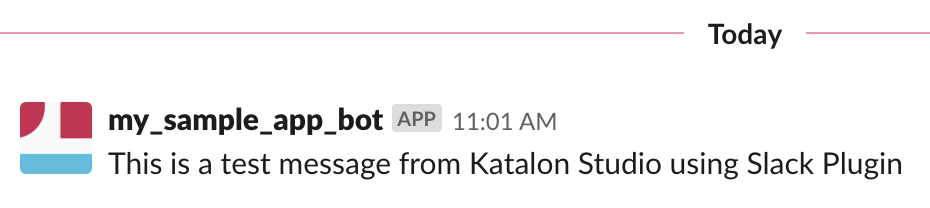
    • Click the Test Connection to check your credentials. If everything is OK, a message should be sent to Slack.

    test_message

    • Click the Apply button then OK to close the Project Settings dialog.

    Run test execution

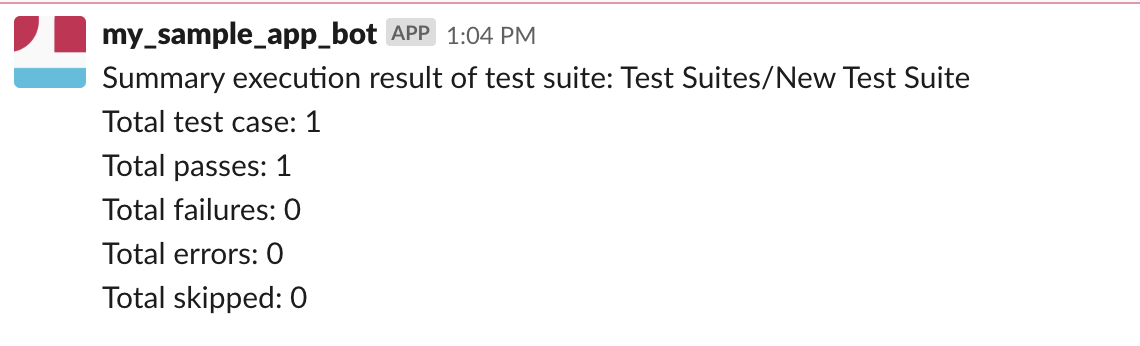
    • Execute a test suite and wait for the execution finished, a summary message should be sent to your Slack channel.

    summary_message

    Companion products

    Katalon TestOps

    Katalon TestOps is a web-based application that provides dynamic perspectives and an insightful look at your automation testing data. You can leverage your automation testing data by transforming and visualizing your data; analyzing test results; seamlessly integrating with such tools as Katalon Studio and Jira; maximizing the testing capacity with remote execution.

    Katalon Studio

    Katalon Studio is a free and complete automation testing solution for Web, Mobile, and API testing with modern methodologies (Data-Driven Testing, TDD/BDD, Page Object Model, etc.) as well as advanced integration (JIRA, qTest, Slack, CI, Katalon TestOps, etc.). Learn more about Katalon Studio features.

    Visit original content creator repository
  • tachyons-verbose

    TACHYONS Verbose

    Functional css for humans. Verbose edition.

    Quickly build and design new UI without writing css.

    Version 5.0.0.alpha

    Principles

    • Everything should be 100% responsive
    • Everything should be readable on any device
    • Everything should be as fast as possible
    • Designing in the browser should be easy
    • It should be easy to change any interface or part of an interface without breaking any existing interfaces
    • Doing one thing extremely well promotes reusability and reduces repetition
    • Documentation helps promote reusability and shared knowledge
    • Css shouldn’t impede accessibility or the default functionality of Html
    • You should send the smallest possible amount of code to the user

    Features

    • Mobile-first css architecture
    • 8px baseline grid
    • Multiple debugging utilities to reduce layout struggles
    • Single-purpose class structure
    • Optimized for maximum gzip compression
    • Lightweight
    • Usable across projects
    • Growing open source component library
    • Works well with plain html, react, ember, angular, rails, and more
    • Infinitely nestable responsive grid system
    • Works out of the box but easy to customize and extend

    Verbose?

    The main difference between Tachyons and Tachyons Verbose is the latter spells out all of its classes. So instead of dib, we will spell it out as display-inlineblock. Our naming conventions stay close to the original CSS properties so that you don’t have to remember an extra acronym or naming convention. As a bonus, if your memory is rusty about CSS property names and values, using Tachyons Verbose will help you remember that too. In short, it’s functional CSS with the lightest cognitive load possible, and the only downside is that the code initially looks “ugly” because there are a lot of words in the class declaration.

    Verbose class naming conventions

    Tachyons Verbose classes use an unambiguous naming formula:

    .propertyname-value-mediaquerysize

    As you can see, hyphens are only used to separate the properties from their values, or to add on a conditional media query. For example:

    • .textalign-center maps to { text-align: center; }
    • .position-absolute maps to { position: absolute; }

    Media queries are labeled as mediaS, mediaM, mediaL or mediaXL for small, medium and large screen sizes. In the future, we will support container queries as well, which is why we decided there was need to clarify these are for @media queries. So:

    • .textalign-center-mediaS maps to { text-align: center; } when the screen size is 30em or more. You can set what the media query breakpoints are at in src/_media-queries.css.

    Because CSS class names don’t support most symbols and punctuation marks, we had to make our workarounds for certain values. For example:

    • .width-100percent maps to { width: 100%; }
    • .lineheight-1p5 maps to { line-height: 1.5; } as in “one point five”
    • .margin-minus2 maps to { margin: calc(-1 * var(--spacing-2)); } where “minus” also means negative

    As you can see, some of our class names use double dash -- variables that you can adjust in src/_variables.css.

    Tachyons Verbose specific implementation

    This release of Tachyons Verbose is a verbose fork of the Tachyons v5.0.0.beta. Aside from different naming conventions, we also made a few additions:

    • If specific values are referenced in size scale, you can refer to both as a part of the scale and as the literal value. E.g. 1backgroundsize-3 and .backgroundsize-16px both map to { background-size: 16px; }.
    • In parallel to the numerical size scales, we also use small, medium ad large for heights, widths, margins and paddings. In this scheme, padding-medium gives 1 rem of padding. To increase the size use large, xlarge, xxlarge, xxxlarge, etc. To decrease use small, xsmall, xxsmall, xxxsmall, etc.
    • Tachyons v5.0.0.beta replaces all media queries with container queries. Tachyons Verbose hasn’t changed over yet because a) container query support is still relatively new, and b) we haven’t been able to use dynamic variables for container query breakpoints yet.

    What to know if you’re an existing user of Tachyons Verbose (v4 from 2018)

    • Most of the stuff is still the same! Don’t fret about having to learn a completely new thing.
    • You can now adjust scales, sizes and colors in src/_variables.css.
    • The font scale (f1 or fontsize-2) runs linearly with 1 being the smallest and 12 being the biggest.
    • The colors have new names. E.g. backgroundcolor-red is no longer a class, but you get a whole spectrum from backgroundcolor-red1 to backgroundcolor-red11.
    • Media queries are no longer referenced with a simple -m or l suffix. They are now referenced as -mediaM and mediaL. Oh and -ns is now -mediaS.
    • But hey, there’s a new media query size at mediaXL.
    • The legacy v4 files are the css folder in case previous users want to reference them or want to link to both the legacy and new versions at the same time for a more gradual transition.
    • We renamed our CSS files to tachyons-verbose.css.

    Getting Started

    Local setup

    Download the repo from github and install dependencies through npm.

    cd tachyons-verbose
    npm install
    

    Dev

    If you want to just use everything in tachyons/src as a jumping off point and edit all the code yourself, you can compile all of your wonderful changes by running

    npm start

    This will output both minified and unminified versions of the css to the css directory and watch the src directory for changes. It’s aliased to the command:

    If you want to recompile everything from src everytime you save a change – you can run the following command, which will compile and minify the css

    npm run build:watch

    If you’d like to just build the css once without watching the src directory run

    npm run build

    If you want to check that a class hasn’t been redefined or ‘mutated’ there is a linter to check that all of the classes have only been defined once. This can be useful if you are using another library or have written some of your own css and want to make sure there are no naming collisions. To do this run the command

    npm run mutations

    Contributing

    Please read our code of conduct for contributors.

    Help

    If you have a question or need help feel free to open an issue here.

    About Tachyons

    For more information about (non-verbose) Tachyons, check out tachyons.io and its docs section at https://tachyons.io/docs/.

    Visit original content creator repository